
I consider uncontrolled auto-apply recommendations a Google Ads trap. You build campaigns around your services and their economics, then discover that settings have changed without your knowledge. The extra clicks may look encouraging while doing little for your profit.
Where to find auto-apply settings
In your Google Ads account, open “Admin”, select “Account settings” and find “Auto-apply”. Then open the auto-apply settings to review the permissions.
There is another route through “Campaigns” and “Recommendations”. Open “Auto-apply” from there to see which recommendation types Google is allowed to apply without asking you about each individual change.
The recommendations are organised into two groups. Check both, even if you think you have already reviewed the important settings.
- “Maintain your ads”: recommendations related to maintaining your advertising.
- “Grow your business”: recommendations intended to expand or change how campaigns operate.
What Google can change in your account
Read each permission as a specific action affecting your advertising. What happens if a keyword is removed, targeting expands or your target cost per lead changes? The consequences for your business should determine whether a recommendation makes sense.
How I limit automatically applied changes
I only allow auto-apply for types of changes I have approved in advance and can quickly identify and reverse. Recommendations that change who the campaign targets, the creative or the way the budget is spent remain manual decisions.
After enabling any of these permissions, I read the change history as a record of interventions. I connect each edit to its date so I do not mistake its effect for ordinary campaign fluctuations. Google explains the mechanism and the queue in its guide to automatically applying recommendations.
Changes to ads
One possible change involves ad rotation. Recommendations affecting the ads themselves, including headlines and descriptions, deserve closer attention. Your wording determines who clicks and what they expect when they reach your website.
Imagine a repair shop that specialises in premium cars. Its ad says “Premium Car Repairs”. If that promise becomes “The Cheapest Repairs”, it may attract more clicks, but it also attracts a different expectation.
A visitor arrives looking for the lowest price, sees premium service prices and leaves. As the business owner, you need the ad to represent the service you actually sell. A higher click-through rate alone does not make the change worthwhile. That is why I review changes to the message manually.
Changes to keywords and targeting
Depending on which recommendations you enable, you may give Google permission to:
- Remove keywords.
- Add new keywords.
- Remove negative keywords it considers conflicting.
- Change targeting.
- Add broad match keywords.
- Expand ad delivery into the Google Display Network.
I see a potential conflict of incentives here. Expanded reach gives the platform more opportunities to serve ads, but it does not necessarily protect your margin. If the new searches fail to bring customers, the advertiser still pays for the clicks.
The same caution applies to a switch to Maximise Conversions without a target CPA. Do not leave that decision to auto-apply without reviewing the economics. A different bidding strategy can change your cost per lead; a positive recommendation label does not tell you whether the change will be profitable.
Changes to bids and bidding strategies
Review the permissions that affect bidding separately. Consider whether you want Google to do any of the following without another approval:
- Set bids automatically.
- Change bids you have set.
- Set a different target cost per conversion.
- Change the bidding strategy.
Suppose Google recommends increasing your target CPA. If that recommendation is applied automatically, your campaign may start accepting more expensive leads. For the platform, this is a campaign recommendation. For you, it is a decision about how much the business can afford to pay to acquire a customer.
How to turn auto-apply off
Even one enabled recommendation type can affect settings you spent time refining. When I take control of an account, I start by disabling auto-apply and reviewing the edits that have already happened.
Open the auto-apply settings and clear the tick boxes for recommendations that are allowed to run automatically. Check both groups, then click Save. You can then decide separately whether any types of changes deserve permission to run under your supervision.
You do not need to accept the entire set of automatic changes to optimise an account. Read a recommendation, assess what it would mean for the business and make the decision yourself.
A checklist for disabling auto-apply
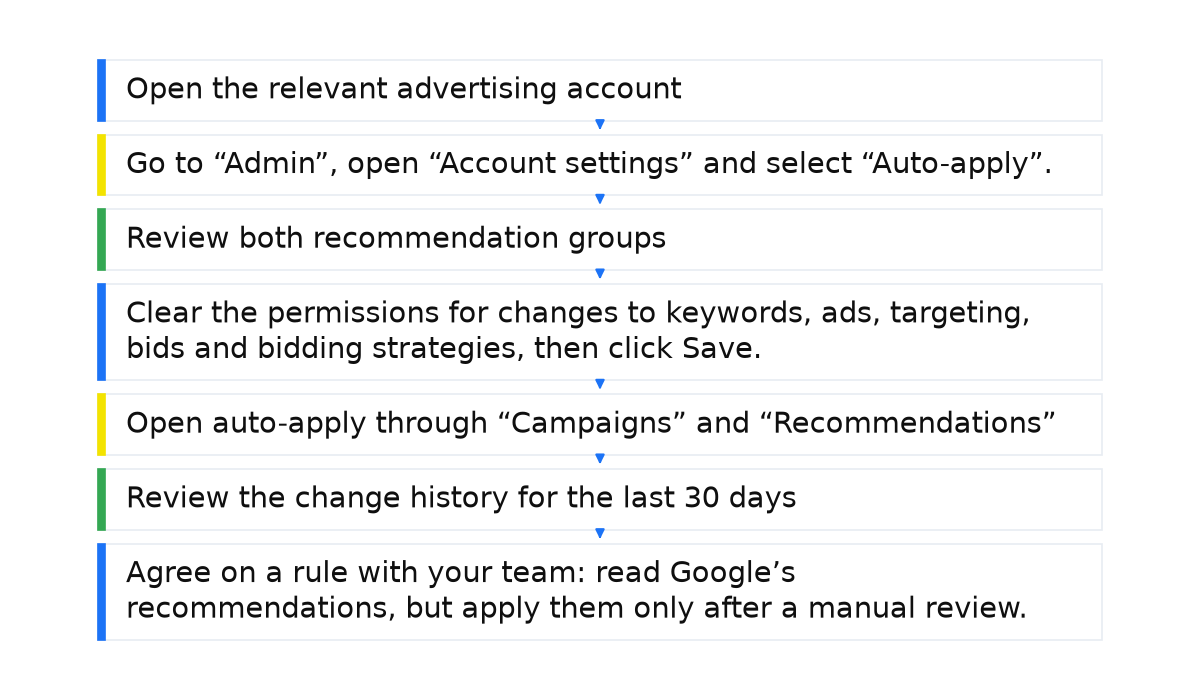
- Open the relevant advertising account rather than the manager account, or MCC, so you are reviewing the actual campaign account settings.
- Go to “Admin”, open “Account settings” and select “Auto-apply”.
- Review both recommendation groups: maintaining ads and growing the business.
- Clear the permissions for changes to keywords, ads, targeting, bids and bidding strategies, then click Save.
- Open auto-apply through “Campaigns” and “Recommendations” as well to confirm those permissions are off.
- Review the change history for the last 30 days and identify automatic edits made before you disabled the feature.
- Agree on a rule with your team: read Google’s recommendations, but apply them only after a manual review.
Keep control of the decisions
Decisions about your message, targeting and acceptable cost per lead should remain under your control. Disabling unreviewed automatic edits reduces the risk of surprises. Then assess recommendations against your business goals and use the change history to understand what affected the results.
When this does not apply
- Disabling auto-apply does not stop the automatic operation of a bidding strategy you have already selected.
- Recommendations will still appear in the interface even when Google cannot apply them automatically.
- Rejecting all automation does not guarantee better performance either. Assess each recommendation against your goals and business margins.
If the history reveals automatic edits and you are unhappy with costs or lead quality, broaden the review. A Google Ads audit can connect account settings with campaign results and help you decide which problems need attention first.
My e-book “19 Google Ads Secrets”: how to get the most out of Google Ads without draining your budget, drawn from real campaigns and tests.
See the book →