
Google Ads Editor becomes useful when a small business change creates a long evening of repetitive clicks. Google calls it a free, downloadable application for managing campaigns: download one or more accounts, make changes offline, and upload them to Google Ads. It is especially useful with several campaigns or long lists of keywords and ads. If your company changes a phone number, service area, seasonal message, or price language across many ads, Editor turns that into one controlled batch.
Bring the current account into Editor before working offline.
Check changes before sending the package.
Publishing is a separate action after review.
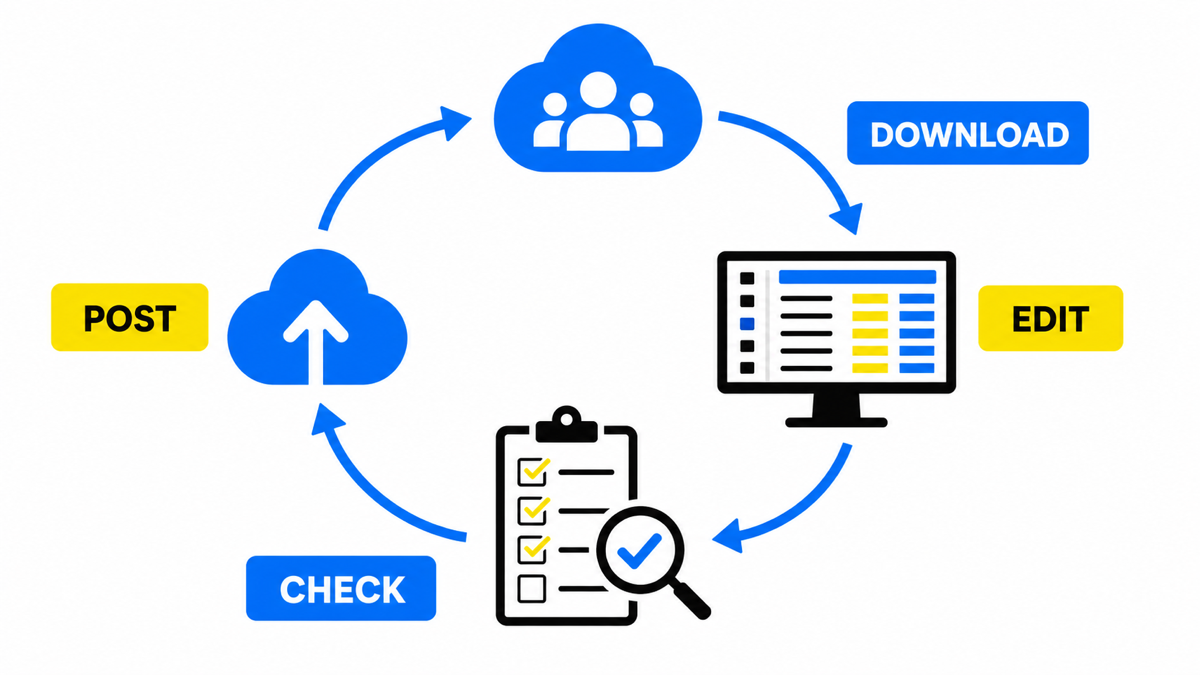
Use Editor alongside the browser interface
Installing Editor does not retire ads.google.com. A colleague can work in the browser while you work with the same account in the desktop app. Before a large editing session, download recent changes so that your local copy includes work completed elsewhere.
The practical split is straightforward. Use the browser to inspect the live account and handle individual settings. Use Editor to prepare a group of changes, check them together, and publish only when the package is ready. Until you click Post, the edits remain a local draft.
Install Editor and download your account
The supported systems are 64-bit Windows 10 or later and MacOS 13 or later. Editor 1.3 and later are not compatible with 32-bit Windows. Check the operating system first if an older office computer cannot complete the installation.
- Download and install Google Ads Editor. The installation guide directs you to download an account next.
- Open Accounts. This is the account manager inside the application.
- Select Add. Sign in with an email address that has access to the Google Ads account.
- Choose what to download. The dialog offers All, None, Active, and Paused. Active downloads active campaigns while paused, removed, and ended campaigns stay on the server.
- Confirm and wait for the download. Expand the account in the left-hand tree when it is ready.
- Review Settings or Preferences. These contain defaults for new campaigns, so inspect them before creating or copying anything.
Editor 11.0 and later can display multiple accounts side by side. There is also an important safeguard: Account menu → Full download overwrites the local copy and removes unposted changes. Do not use Full download as a routine refresh when the app still contains a draft you need.
Learn the three high-value operations first
You do not need to master every panel before Editor pays for the setup effort. Start with the three workflows that service companies repeatedly need. They rely on documented features: bulk editing, search and replace, import, copy and move, review, and Post.
1. Replace one message across many ads
A clinic updates its booking phone, a law firm changes office location, or a home-service company ends a seasonal offer. Instead of opening every ad:
- Select the relevant item type in the type list.
- Choose an account or campaign in the tree, then highlight the required rows.
- Open Edit menu → Replace text.
- Enter the old and new text. Use Match case or Match whole words only when needed.
- Run Replace, review the marked edits, then use Check changes and Post.
2. Import keywords or negative keywords from a sheet
When your marketing manager or agency sends a spreadsheet, avoid retyping it. Build columns for the keyword, match type, bid, final URL, or status, with fields separated by tabs or commas. Make multiple changes can accept the list from the type list, or you can use Account → Import → From file. If the sheet includes column headers, those headers must be in English.
3. Copy a working campaign structure
A company opening another location or adding a related service rarely needs to rebuild every ad group from scratch. Editor supports copy and move between groups, campaigns, and accounts. Copy a proven group with its ads and keywords, paste it into the new campaign, replace the location or offer, and publish the batch. The ten-minute promise comes from combining a few focused tools, not from an automatic campaign generator.
Know which tasks are genuinely faster in Editor
| Owner’s task | In Google Ads online | In Google Ads Editor |
|---|---|---|
| Update the same phrase in many ads | Edit individual ads or use a separate web bulk workflow | Run Replace text against selected rows |
| Add or revise a long keyword or negative-keyword list | Enter items individually or use web bulk tools | Use Make multiple changes or import a file |
| Recreate a similar group in another campaign | Build the structure again | Copy, paste, then edit only the differences |
| Prepare a package for review before it goes live | Changes affect the live account unless a separate draft process exists | Keep the package local and use Post after approval |
| Work with an unreliable connection | The browser requires connectivity | Edit offline and send when the connection returns |
| Manage shared budgets or shared creatives | Use the full controls available online | Shared budgets are read-only, shared creatives require the online account |
The official Editor overview documents offline work, bulk changes, copy and move, and search and replace. The feature matrix documents the shared-budget and shared-creative limits.
Once the first batch is complete, the harder question is usually not how to edit the account. It is what should change and which conversion should guide that decision. A broader account review can focus on that business logic without turning Editor into the answer to every performance problem.
My e-book “19 Google Ads Secrets”: how to get the most out of Google Ads without draining your budget, drawn from real campaigns and tests.
See the book →Review the batch before you click Post
Google’s workflow is Check changes followed by Post. In the Post dialog, choose All campaigns or Selected, read the summary, and confirm. Successfully posted changes are reflected in the account immediately, although they can take a little longer to appear across the Google Network. Items with errors remain highlighted for correction and another attempt.
Use extra care with an ad type that contains online fields Editor does not support. When you post from Editor, text in unsupported fields can be stripped. Handle those specialized fields in the browser and inspect the batch before publication.
When this does not apply
Frequently asked questions
Does Editor replace ads.google.com?
No. Both interfaces work with the same account. Editor is designed for bulk changes and local drafts, while the online account remains available for everyday management and unsupported features.
Will my edits survive if I close the app before Post?
They remain in the local Editor copy. Full download is the important exception because it overwrites that copy and removes unposted changes. Preserve or post the draft before a full refresh.
Why do I see the change in the account but not in the ad yet?
Google distinguishes immediate reflection in the account from appearance on the Google Network, which may be slightly delayed. That delay alone does not mean the Post failed.
What is the safest first exercise?
Treat the ten-minute headline as a first exercise after installation, not as a speed guarantee. Download active campaigns, test Replace text on a safe phrase in a paused group, run Check changes, and then Post. After that, move to Make multiple changes and structural copying.