
Gmail advertising gives a service business another opportunity to catch a potential customer’s attention. Someone checking their inbox can notice an offer from your auto repair shop and visit your website to book a service.
Think of this as an additional point of contact in your advertising. Appearing alongside email messages is only the beginning: you still need a relevant audience, a clear offer and a reason for someone to open the ad.
How to set up advertising in Gmail
Consider an auto repair shop in Chicago. To advertise in Gmail, use a Demand Gen campaign in Google Ads. You can select Gmail among the channels in your ad group settings, as explained in Google’s guide to Demand Gen channel controls.
- Create a new campaign in Google Ads.
- Decide what you want the advertising to achieve. For an auto repair shop, that could mean service enquiries and bookings.
- Select Demand Gen as the campaign type.
- Continue to the campaign settings.
- Give the campaign a useful internal name, such as “Gmail Auto Repair.” Choose something that makes it easy to identify in your account.
- Set the location to the area you serve. For this example, that is Chicago.
- Choose the languages your customers use and prepare appropriate ad copy.
- Plan when you want the advertising to run around your shop’s ability to handle enquiries. Someone needs to be available to respond to the customers you attract.
- Choose an available bidding strategy that fits your campaign objective. Use Google’s Demand Gen setup instructions for the settings, rather than the old standalone Gmail campaign workflow with manual bids.
- Set a controlled test budget. Poor audience selection can generate spending without bookings, so decide what you can commit to the initial test.
- Create an ad group for potential auto repair customers. Consider audiences interested in cars, repairs and parts. Use demographic restrictions only when they reflect who actually buys your services.
- Review your budget and traffic cost expectations alongside your other campaigns. If you have not run advertising before, I recommend working on Search first, then extending your reach through Gmail and other channels.
- Review the ad group settings and select Gmail in the channel controls if your test is specifically about inbox advertising.
- Prepare your ad copy and images. Start with a clear service offer; you can commission more elaborate design work later.
Use separate ad groups to test different audience approaches. One might focus on automotive interests, while another uses a custom segment built around auto repair terms. These terms describe interests or search intent, rather than words in someone’s private emails. See Google’s explanation of custom segments for how those inputs work.
How to prepare an ad for Gmail
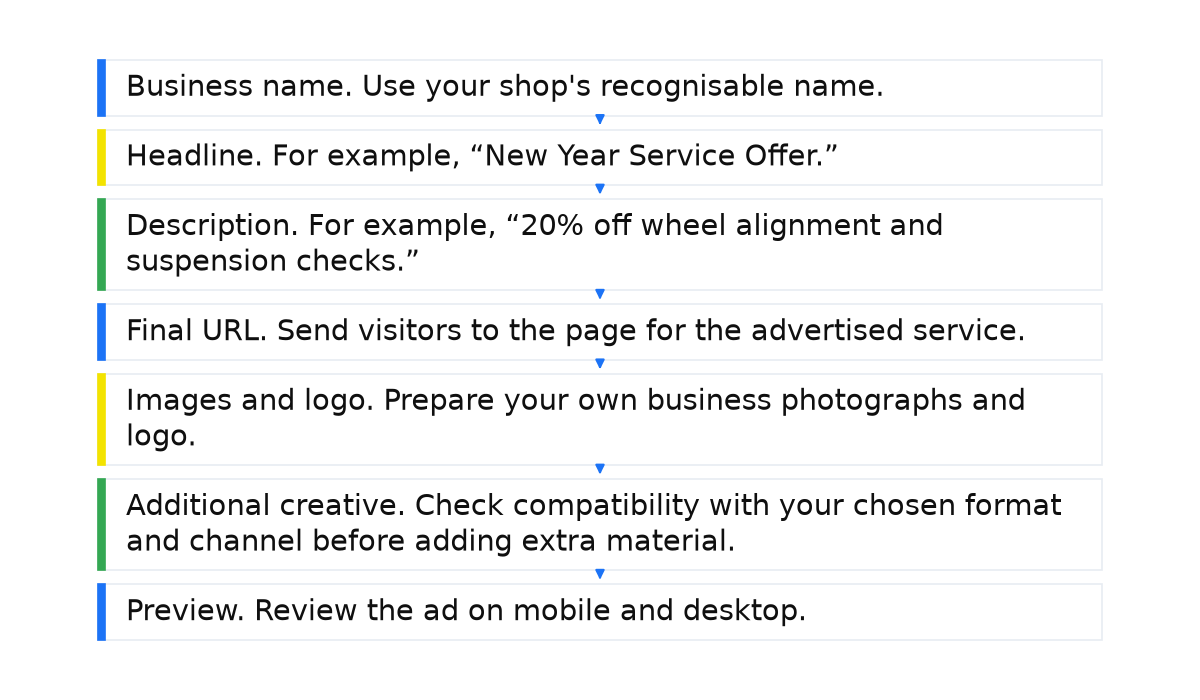
Gather the material for your ad before building it. Each element should help a potential customer understand who you are, what you offer and where the click will take them.
- Business name. Use your shop’s recognisable name. It should match the business visitors will find on the website.
- Headline. For example, “New Year Service Offer.” You could highlight a specific benefit or an offer that will interest a car owner.
- Description. For example, “20% off wheel alignment and suspension checks.” This is sample copy: use that discount only if your business genuinely offers it.
- Final URL. Send visitors to the page for the advertised service. Make it clear how to book or submit an enquiry.
- Images and logo. Prepare your own business photographs and logo. The visuals should support the service offer in the copy.
- Additional creative. Check compatibility with your chosen format and channel before adding extra material. The basic offer should already make sense through its copy and images.
- Preview. Review the ad on mobile and desktop. Check that the text is readable and the main offer is easy to spot, then make any corrections and save it.
Check your account’s payment setup and the campaign’s readiness to run. Once it is live, follow the customer journey from the ad to the website and through to a service booking. Launching a campaign does not by itself produce customers.
The benefits of an automated email campaign
Email marketing is a separate activity you can use alongside paid Gmail placements. Automated emails help you stay in touch with a prospective customer who is not ready to book yet. For example, you might send a useful message once a month.
- Explain the benefits of your service.
- Invite customers to book routine maintenance.
- Send seasonal greetings and relevant offers.
- Share your own videos and social media posts.
- Tell readers about new blog posts so they have a reason to return to your website.
- Include your phone number and address so it is easy to contact you.
What to take away from Gmail advertising
- Gmail within Demand Gen can complement Search advertising and extend your business’s reach.
- Assess click costs using your own campaign results. A low cost per click does not automatically mean you are acquiring customers profitably.
- Choose audiences based on interests, intent and previous interactions with your business. Demographics should refine that choice, supported by what you know about your customers.
- Build an offer that gives someone a reason to open your ad and find out more about the service.
- After launch, compare Google Ads and Google Analytics reporting to see which audiences and ads generate enquiries and sales. Use those findings to adjust the campaign.
When this does not apply. If you choose an audience without understanding your customers, present an unappealing offer or send visitors to a page that makes booking difficult, additional reach may simply create additional costs. Without checking enquiries and sales, you cannot judge whether the campaign is worth continuing.
Using Gmail to grow your service business means connecting the audience, the offer and the results. The next step in learning Google Ads is to work through that sequence for your own business and prepare a campaign you can test and evaluate.
A campaign built by the manual still does not guarantee leads. My e-book “19 Google Ads Secrets” shows how to get the most out of Google Ads without draining your budget, drawn from real campaigns and tests.
See the book →