
Someone who has already bought from you often needs a different offer from someone discovering your business for the first time. Customer lists in Google Ads help you make that distinction. Customer Match uses the contact details you have collected to connect your customer database with your advertising.
You can upload an existing list or set up lists based on website conversions. For a business owner, the purpose is practical: encourage another purchase, reconnect with an inactive customer, or exclude existing buyers from ads intended to attract new ones.
Why customer lists matter for your business
If your business collects customer phone numbers or email addresses, those details can form the basis of an audience segment in Google Ads. Google uses the uploaded information to match customers to Google accounts. This lets you work with an audience that already has a relationship with your business.
There are two main ways to use that list:
- Run separate ads for existing customers. Make the offer relevant to a previous purchase or to what those people already know about your business.
- Exclude customers from new customer campaigns. Avoid spending that acquisition budget on people who have already bought the relevant product or service.
A key benefit is the connection to a person’s Google account. The same customer might use a phone, a tablet, and a computer. When Google matches their contact details to an account, switching devices does not necessarily break that connection.
This does not mean every uploaded customer will be recognized in every situation. The match must succeed for the list to serve its purpose.
The benefits of using customer lists
Your customer database creates several opportunities to make advertising more relevant. The options available depend on your campaign type and account eligibility.
- Reach an audience you already know. Customer lists help you reach customers across eligible Google advertising inventory, including Search, Gmail, YouTube, and the Display Network.
- Tailor the message to the segment. Ad copy and calls to action can reflect what each group already knows about your offer.
- Exclude existing buyers. A campaign designed to attract new customers does not need to keep selling an already purchased service to the same people.
- Keep lists current through your CRM. A working connection reduces manual contact uploads and helps maintain an up-to-date audience.
- Advertise to a warm audience. People familiar with your business may be closer to their next purchase than first-time visitors.
- Test for better conversion rates and lead costs. Re-engaging customers creates an opportunity to improve these measures. Check whether that improvement happens in your own campaigns.
- Reconnect with inactive customers. Remind them about your business, invite them back to your website or store, or give them a reason to consider a promotion or new product.
- Use customer data to help find new audiences. In Demand Gen, for example, lists can support Lookalike segments. See Google’s explanation of Lookalike segments for how they work.
Where to enable conversion-based customer lists
Automatically building lists from conversions is different from uploading an existing database. The automatic option needs user-provided data from enhanced conversions. Selecting a checkbox without the necessary data collection will not populate the audience.
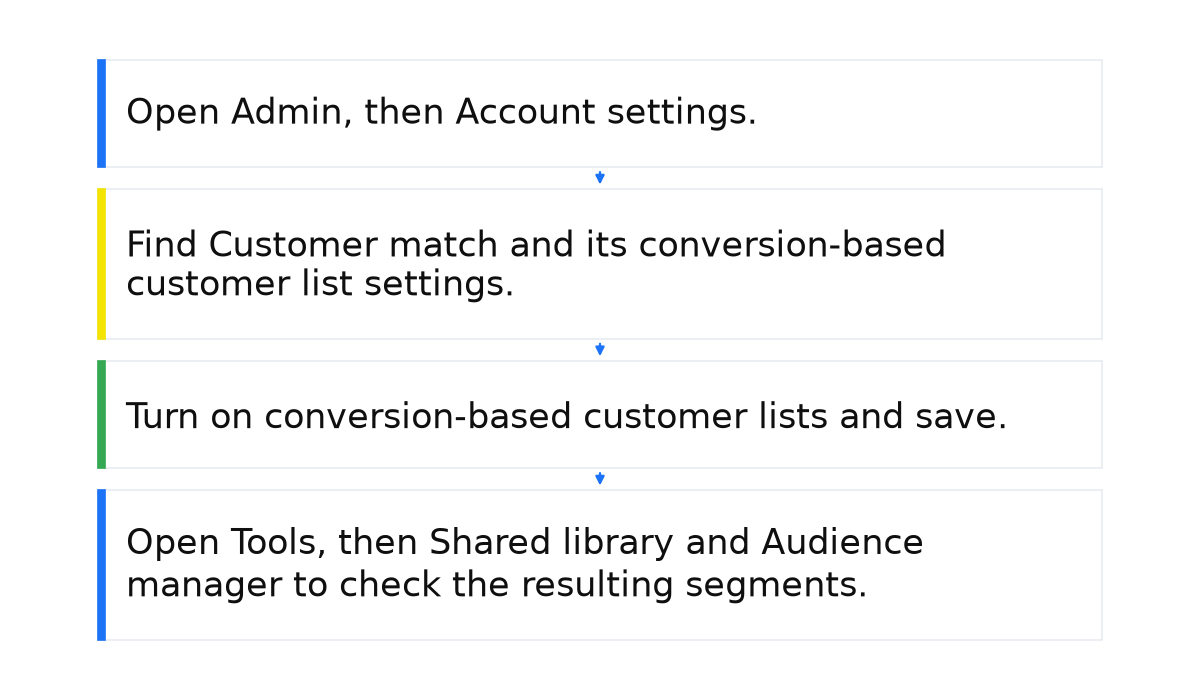
- Open Admin, then Account settings.
- Find Customer match and its conversion-based customer list settings.
- Turn on conversion-based customer lists and save.
- Open Tools, then Shared library and Audience manager to check the resulting segments.
Segments are generated for relevant conversion goals, such as purchases. Their contents depend on the data arriving in Google Ads. The requirements and activation steps are covered in Google’s conversion-based customer list guide.
How to upload your customer database
If you already have contacts in a CRM or a file, you can create a list from that data. In Audience manager, select the plus button and choose a customer list.
Next, choose how to provide the data. If a connection is available for your CRM, set it up so contacts can flow into the list automatically. This is useful when your database changes regularly and manual uploads take time.
For a manual upload, choose the file option, name the audience, and select the data type. Prepare a CSV containing supported identifiers, such as email addresses or phone numbers. The identifiers and column format need to match the upload option you selected.
Select the prepared file and settings, confirm the upload and list creation, then check the processing result. You can then maintain the list by adding new customers or removing contacts who should no longer belong to the segment. The process is described in Google’s guide to creating a customer list.
Customer Match has a maximum membership duration of 540 days. This is the time someone can remain on a list, not an expiry date for their email address. Automatic updates depend on a working data connection; uploading a CSV once does not make it synchronize with your CRM. See how Google uses Customer Match data for membership duration and matching details.
Before using the database, check account eligibility and Google’s customer data requirements. Having a file of contacts does not automatically make every targeting option available.
How to put customer lists to work
The uploaded file is only useful when it informs a decision. Give each segment a clear advertising purpose.
- Separate messages for new and existing customers. Explain your main offer to newcomers. Give existing buyers a reason to return or consider an additional purchase. This connects the list to repeat sales and higher order values.
- Account for customers moving between devices. Matching a person to their Google account can help you maintain the connection when they move from a phone to a computer.
- Combine the audience settings available to your campaign. Depending on the campaign, customer segments can be used alongside location settings, demographics, and other audience segments.
- Give automation meaningful inputs. Customer lists and conversion data can support automated bidding and audience discovery. Check data requirements and feature availability for the particular campaign, rather than assuming one numerical threshold applies everywhere.
Also check which changes your account applies automatically: Google Ads auto-apply recommendations and how to turn them off.
Conclusion
I recommend that business owners with a customer database consider Customer Match as a way to make their advertising more relevant. Start with a clear use case: a separate offer for customers or an exclusion from campaigns meant to acquire new buyers.
Then keep the contacts current and evaluate the results. Creating a list is only the starting point. It needs to contain the right people, be used in the appropriate campaign, and connect those people with an offer that makes sense to them.
When this does not apply: a list cannot do its job when there is insufficient matchable data, contacts are outdated, the required feature is unavailable to the account, or the use of customer information does not meet Google’s rules. Automatic lists also need the relevant data collection to work. Personalization cannot compensate for a poor database or an irrelevant offer.
Turning a customer database into useful advertising means connecting audiences, ad copy, and campaign objectives. Learning how to manage those settings together is the next step towards a more systematic approach to Google Ads for your business.
My e-book “19 Google Ads Secrets”: how to get the most out of Google Ads without draining your budget, drawn from real campaigns and tests.
See the book →