
You may search for your business on Google, see no ad, and assume the campaign has stopped. That is not always the case. Here is a practical way to find out whether your Google Ads ad is running, why it may not be showing, and what to check next.
A reliable way to check your ads
Work through these checks in order:
- Open Search keywords and check the status beside every keyword. If each one is marked Eligible, move to the next step.
- Open Ads. The ads should also be marked Eligible. Google may reject an ad because of a poor quality image, a prohibited product, or repeated links. Resolve any status issue before continuing.
- In your Google Ads account, open Tools and then Ad Preview and Diagnosis. Enter the keyword, location, language, and device you want to test. The tool will tell you whether the ad can show under those conditions.
- The ad is showing. Your campaign is working, even if you did not see the ad at that particular moment. Also check the date range in the account. A range that is too short can make a working campaign look inactive.
- The ad is not showing. The tool will display the reason. The most common causes are covered below.
Use Ad Preview and Diagnosis rather than repeatedly searching for your own ad. Manual searches can harm the campaign and still do not give you a reliable answer.
The main reasons a Google Ads ad does not show
If an eligible ad receives few or no impressions, start with the bid and budget.
- The bid is too low. Your maximum amount may not be enough to win a click. Check Search lost impression share. If the figure is above 30%, you are missing roughly one in every three potential customers. Raise the bid.
- The budget is too low. It may run out early in the day, leaving the campaign with very few impressions later. Google now paces Search budgets automatically, so there is no standard or accelerated delivery switch. If impressions cluster in the morning and then stop, raise the daily budget.
Ads may also have no impressions because they are not approved. Open Tools and then Policy Manager. It lists policy problems in the account, explains what was violated, and lets you open the affected ads.
Fix every violation Google identifies. Unresolved issues affect the account’s standing, and the affected ads cannot run until the problem is corrected.
Other reasons you may have no impressions
If approval, bids, and budget look normal, check these less common causes:
- An ad can remain under review for 2 to 3 days, so it will not appear while the review is in progress.
- Google may be reviewing a new Google Ads account or new payment details.
- Your keywords may contain mistakes or describe searches that people rarely make. Correct the wording or choose terms with more search activity.
- A negative keyword may block the query you want. Review the list and remove any conflicts.
- The ad may lose the auction because of low quality, a weak bid, or an audience that is too narrow.
- An approved ad may stop serving because of a landing page problem. Check whether the page loads slowly, returns an error, or cannot be found.
- Your own test may be affected by a technical condition such as an ad blocker, a VPN, an ad schedule, or a device the campaign does not target.
- An ad blocker is enabled in the browser.
- A VPN is active, so the detected country does not match your targeting.
- Your ad schedule does not include the time when you are checking.
- You are using a device that the campaign does not target.
Review the campaign settings once more to rule out these conditions.
Where I start the diagnosis
When a campaign has no impressions, I check the ad status and policy details first. Only then do I look at budget, bids, and reach. This order quickly separates a serving restriction from an auction problem.
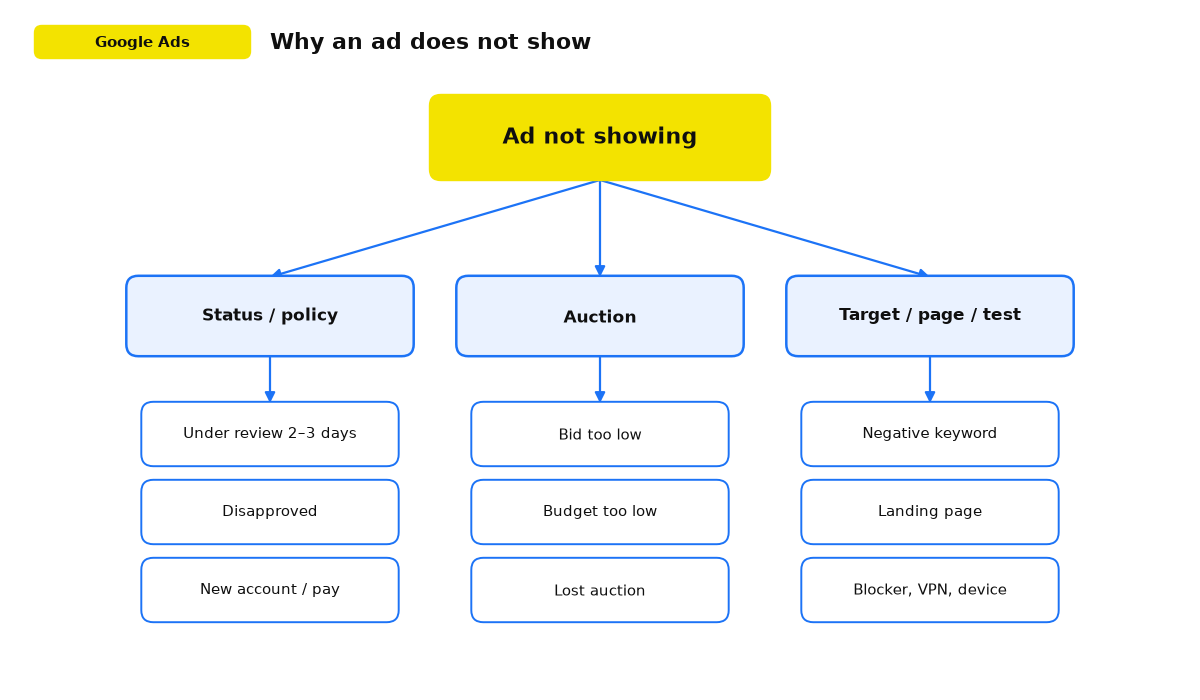
Google’s help centre explains ad statuses and policy details, including rejection reasons and serving restrictions.
Symptoms, causes, and fixes at a glance
Match what you see in the account with the likely cause, then apply the corresponding check.
| What you see | Likely cause | What to do |
|---|---|---|
| The ad is under review | Google is performing its normal review. New accounts and new payment details can take longer. | Wait 2 to 3 days and check Policy Manager for violations. |
| The ad is disapproved | A policy issue involving an image, a prohibited product, or repeated links. | Open Policy Manager, find the exact reason, fix it, and resubmit the ad. |
| Everything is eligible, but impressions are scarce | The bid is not competitive, and lost impression share due to rank is above 30%. | Raise the bid or use automated bidding with a realistic target cost per conversion. |
| Impressions arrive in the morning and then stop | The daily budget runs out early, so the campaign stops entering auctions later in the day. | Increase the daily budget so Google can keep serving later in the day. |
| The ad does not appear for an important query | A campaign or account level negative keyword blocks the search term. | Review the negative keyword lists and remove the conflict. |
| Impressions are very low and the audience is narrow | Location, device, or audience targeting is too restrictive. | Broaden the targeting and review location bid adjustments. |
| The ad is approved, but customers do not see it | The landing page is slow or unavailable. | Check the destination URL, page speed, and availability. |
| You cannot see the ad in a browser search | An ad blocker, VPN, ad schedule, or device setting affects your test. | Use Ad Preview and Diagnosis instead of a live search. |
Once you have matched the symptom to the table, you have a clear next check and do not need to guess why the campaign is quiet.
My e-book “19 Google Ads Secrets”: how to get the most out of Google Ads without draining your budget, drawn from real campaigns and tests.
See the book →What to do when your ads are not showing
Begin with the data. Check the impressions column to confirm whether the campaign has no impressions at all or simply fewer than expected.
If impressions exist but the number is low, adjust bids and budget, review keywords, improve the ad and landing page, and test a broader target audience. If there are no impressions, resolve approval and policy issues before changing the auction settings.
If you still cannot find the cause, contact Google Ads support or ask an experienced PPC specialist to review the account.
Two status lines that stop an ad from showing are covered separately: