
In a Standard Shopping campaign the bid sits on a product group, not on a keyword. A product group is a slice of the catalog, and every product in it shares one bid. A product can show in ads only when it belongs to a group. A new campaign starts with one ad group and one group called “All products” for the whole inventory. Google’s help on product groups recommends splitting the inventory into smaller groups. The group bid, the maximum cost-per-click, controls serving when you assign cost-per-click manually. With automated bidding the system sets the bids, and the groups are then used for reports, product allocation and exclusions.
Campaign priority matters only when several Standard Shopping campaigns advertise the same product in the same country. The default is Low. You can set Medium or High. In my experience this switch spreads the budget across your own campaigns. It does not raise the product above a competitor. The weekly check is in the guide to Shopping campaign management.
Where the bid sits and what Excluded means
If products show as Excluded, they are not in any active group. To bring them back, subdivide “All products” or create a group for them. You can subdivide a group up to 7 levels, in any order. You cannot set a bid on a group that has already been subdivided. The bid sits on groups with no subgroups. One ad group can hold up to 5,000 product groups.
“Save without reviewing bids” leaves the new groups on the parent group’s bid. “Continue to review bids” opens the “New max. CPC” column, and you can change the inherited bid later on the product groups page. Products excluded from a group may still get impressions and clicks for 48 hours, and the report still shows them.
Which attributes you can split on
You can subdivide only by attributes in the Merchant Center product data. Color, size, price and GTIN are not in that subdivision menu. Editing attributes in the product feed does not rewrite the groups in the campaign. You update the groups by hand inside the ad group. A new or changed product can take 24-48 hours to show up in Google Ads.
Category comes from the Google product taxonomy. If you do not submit one, Google may assign one. After you submit it, Google sometimes refines it, and some products can land in the wrong category, so check the category row before you bid on it. Product type is your own categorization. It can be subdivided up to five times, while the group itself goes up to 7 levels. The “>” character marks each level in the string.
| Split attribute | When it fits | Example |
|---|---|---|
| Item ID | One product needs its own bid or exclusion | The item ID that absorbs spend gets its own group |
| Brand | Manufacturers should not share one bid | The name on the package. The help example is Google |
| Category | You bid by the Google taxonomy | Apparel & Accessories > Clothing > Dresses |
| Product type | You bid by your own tree, up to five times | Home & Garden > Kitchen & Dining > Kitchen Appliances > Refrigerators |
| Condition | New, used and refurbished should not share one bid | “new” and “used”. Without a bid review both inherit the “All products” bid |
| Custom labels | Margin, bestsellers or season, not the menu | [custom_label_0] through [custom_label_4]. Values such as seasonal and bestseller |
| Channel | A physical store and the website should be separate | Local or Online |
| Channel exclusivity | The product sells only locally, only online, or both | Locally, online, or both channels |
Custom labels, not the store menu
I record margin, bestsellers or season in a label, not the store menu category. Seasonal and bestseller are values of one label, not separate fields. A label is optional.
In a public case from the agency Journey Further for the British store Liberty London, the analysis found that almost half the products in the feed received no impressions over 90 days. The feed held tens of thousands of active products, and revenue sat on a small set of products. That is one public case, not a market average. Separate from the case: thousands of groups on one and the same product, all on the same bid, do not make the review easier. You still cannot set a bid on a group that has already been subdivided.
How campaign priority works
The setting is in the campaign settings, under Campaign priority. You only change it at setup when the same product is already in another campaign for the same targeting or feed label. Priority then decides which campaign’s budget is used when products overlap. That is what the instructions for creating a Shopping campaign say. That sentence is about the budget. Which bid is used is a separate rule, below.
The help article on campaign priority states one rule. The bid that is used comes from the highest priority campaign, even if a lower priority campaign has a larger bid. When the highest priority campaign runs out of budget, the next lower priority supplies the bid. When priorities match, the highest bid is used.
In the help example, a High priority summer campaign and a Low priority footwear campaign both advertise sandals. While the summer campaign has budget, its bid is used in that example. When that budget is gone, the footwear campaign’s bid is used. A High priority campaign can still skip an auction before the budget is gone: that note is below. The help suggests raising priority for a subset of products, such as sale items, through an inventory filter, not for the whole catalog.
Two help articles state two different rules, and I do not merge them. The priority article says the bid comes from the highest priority campaign. The article “Shopping campaign not running” says otherwise: the campaign with the higher bid will likely win the auction. When the bids are the same, the campaign with the higher priority setting will win. In practice I open the products report, add a Campaign column or segment, and sort by item ID. If one item ID is in several campaigns, I compare the product group bids and remove the overlap with exclusions, without cutting out too many products.
This priority setting is described for a Standard Shopping campaign. It does not apply to Performance Max. How the two campaign types differ is covered in Performance Max vs Standard Shopping.
What happens before the budget is gone
The budget is spread through the day. To keep money for later, a High priority campaign may skip an auction even when budget is still left. A lower priority campaign that is not reserving funds may enter instead. High priority does not guarantee impressions in the morning.
Patterns you can set up
One campaign with manual cost-per-click: subdivide “All products” by a custom label and set different bids on the groups that have no subgroups. With automated bidding, keep the same groups for reports, product allocation and exclusions, and let the system set the bid. If the bids are the same, the split stays only as a tree in the report: it orders the rows, and it does not split the bid.
Two Standard Shopping campaigns on the same product in one country: put the higher priority and the inventory filter on the slice whose budget should be used first. The rest stays in the campaign with Low priority.
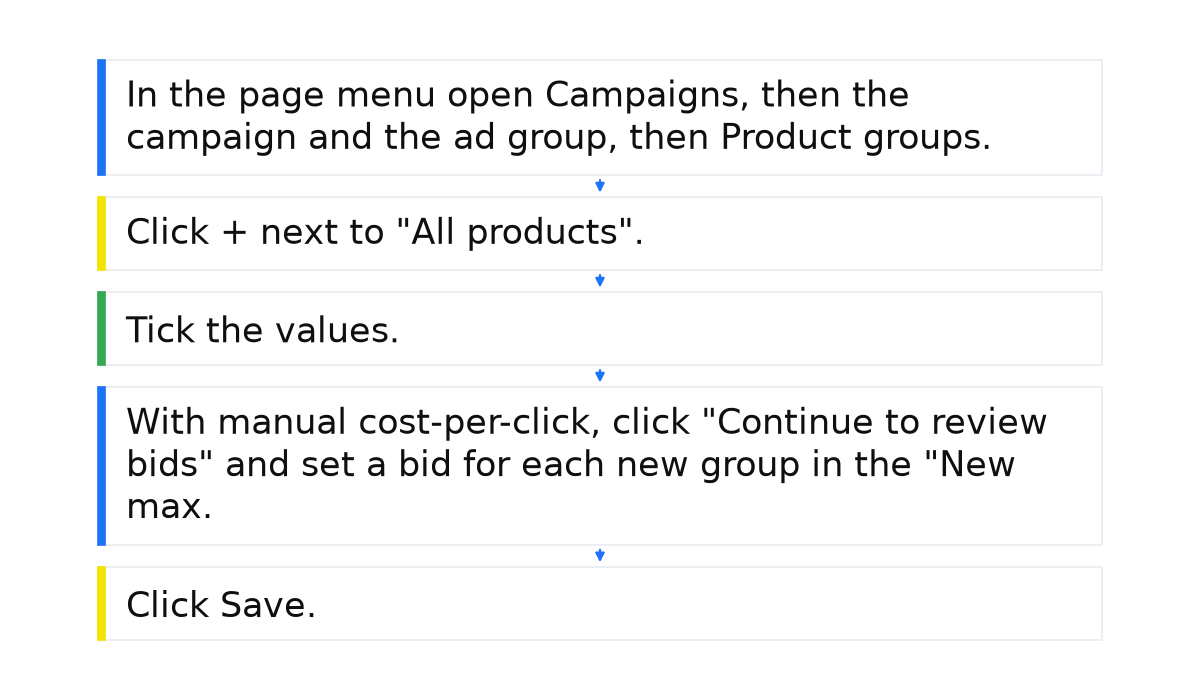
What to do in your account with product groups:
- In the page menu open Campaigns, then the campaign and the ad group, then Product groups.
- Click + next to “All products”. In the menu “Subdivide ‘All products’ by” choose an attribute.
- Tick the values. If a value is missing, click “Bulk add values manually”, enter one value per line, and click Confirm.
- With manual cost-per-click, click “Continue to review bids” and set a bid for each new group in the “New max. CPC” column. “Save without reviewing bids” leaves them on the parent group’s bid. With automated bidding, save the split and leave the bid to the system.
- Click Save.
What to do with priority when the product really is in several Standard Shopping campaigns:
- Open the campaign, the Settings tab, and the Campaign priority section.
- Choose Low, Medium or High, then click Save.
- For the sale slice, set an inventory filter on the higher priority campaign. With that filter on, targeting includes only the products the filter lets through.
When this does not apply
Priority changes nothing when a product sits in only one Standard Shopping campaign. It also does not lift your ad above another advertiser. This priority does not transfer to Performance Max. Splitting into groups does not, by itself, promise a higher return on ad spend, a higher CTR, or a larger impression share.
A product marked “out of stock” or “disapproved” can drop out of the group’s targeting. Why products get disapproved is covered in Merchant Center product disapprovals. A group built on an item ID that is no longer in the Merchant Center data no longer targets that item.
These product group checks are the ones I walk through in a short e-book.
My e-book “19 Google Ads Secrets”: how to get the most out of Google Ads without draining your budget, drawn from real campaigns and tests.
See the book →Questions and answers
Can you bid on “All products” after you have subdivided it?
No. The bid sits only on groups that have no subgroups.
Why does an excluded product still get clicks?
For 48 hours it may still receive impressions and clicks, and the report still shows them. That window is not the Merchant Center review time.
Why do product group impressions disagree with campaign impressions?
When one Shopping ad shows many products in a single slot, each product collects an impression, while the campaign, the ad group and the ad count one impression for the ad. In a Standard Shopping campaign that is why the product groups tab disagrees with the campaign. The same gap is there for Performance Max as well. That is a different count, not a broken report.