
“Destination mismatch” in the Status column means the ad is disapproved: the click does not land on the website, domain, or content the ad shows. Hover over Disapproved in the ads table. The disapproval email names the domain people reached.
The page often still opens in your own browser. The rule is plain: the ad must show honestly which website or app a person reaches after the click. How review works overall is covered in how to pass Google Ads review.
What it means
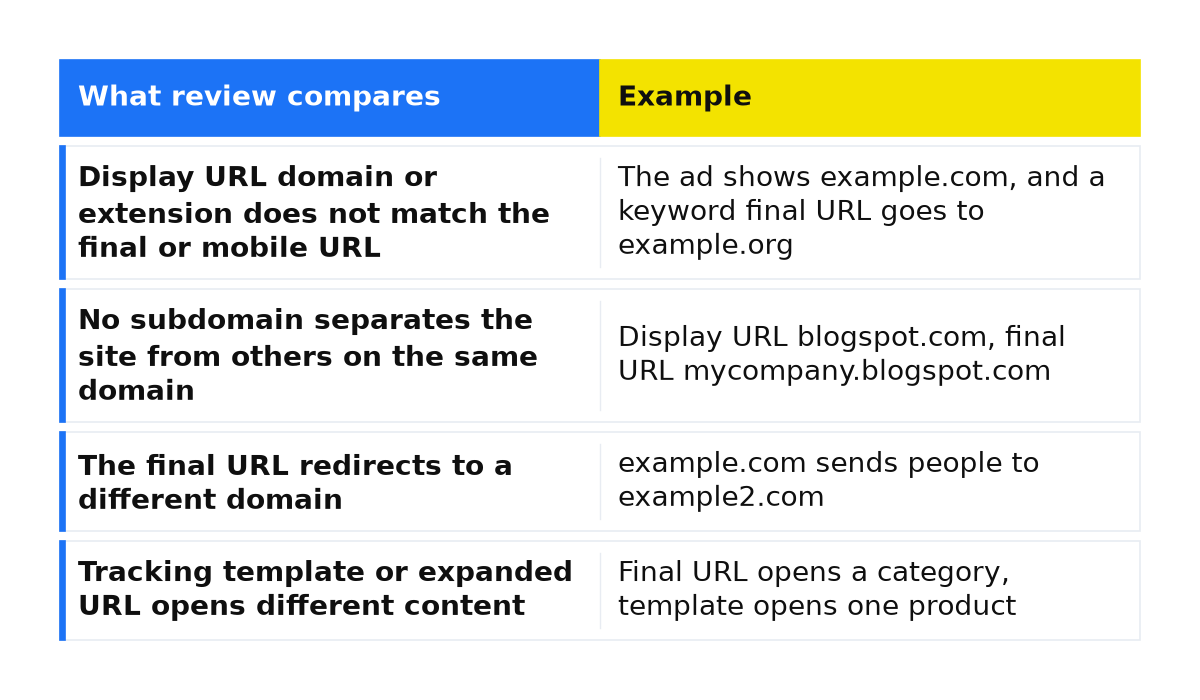
Google disapproves an ad for “Destination mismatch” in four cases, and all four are about the address. The full list is in Google Ads destination requirements.
| What review compares | Example |
|---|---|
| Display URL domain or extension does not match the final or mobile URL | The ad shows example.com, and a keyword final URL goes to example.org |
| No subdomain separates the site from others on the same domain | Display URL blogspot.com, final URL mycompany.blogspot.com |
| The final URL redirects to a different domain | example.com sends people to example2.com |
| Tracking template or expanded URL opens different content | Final URL opens a category, template opens one product |
The display URL is the address on the ad. The final URL opens after the click. Set a mobile URL only when phones use a separate address. The expanded URL combines the final URL, the tracking template, and parameters. Without a tracking template, it must match the final URL. Do not put a keyword in the display domain, as in www.{keyword}.com. You need a subdomain only when other sites share the parent domain, as on blogspot.com.
In my practice the page layout is fine. The problem is in the final URL suffix, which appends parameters, or in the tracking template. A template can change the path, from example.com/clothes to example.com/clothes/shirts.
A tracking parameter inside the final URL can also cause a mismatch unless {ignore} comes first. Following the policy example (placeholder domain): example.com/?{ignore}tracking=123&id=DynamicId.
What is at stake
While the ad has this status, it does not run: no spend and no leads.
This is an ad status, not an account suspension. A new ad using the same address does not resolve the disapproval. Save the ad after the fix and it goes back to review. If you cannot fix the address, remove the ad. A pile of disapproved ads left in place can later lead to an account suspension.
What to do
- Read the exact reason. Open Campaigns, then Ads. Hover over Disapproved in the Status column, and check the disapproval email for the domain the click reached.
- Compare the domains. Display URL, final URL, and mobile URL must share the domain and its extension. Check keyword final URLs too: the ad can show example.com while a keyword goes to example.org.
- Follow the redirect yourself. Open the final URL and see where you land. A different domain at the end is the disapproval, unless Google approved that redirect in advance.
- Check the template and the suffix. Open the expanded URL, including the tracking template and parameters. It must lead to the same content as the final URL.
- Put {ignore} before tags in the final URL. If a tracking parameter is already in the final URL, including a dynamic ID,
{ignore}has to come before it. - Save the same ad. Saving sends it back to review. Edits on the ad, a keyword, or a sitelink go to review on their own. A template on the whole ad group, campaign, or account needs a manual review request. If the ad is still disapproved after the fix, appeal in the Google Ads account.
What not to do
- Do not redirect the final URL to another domain without Google’s prior approval. A page that loads does not clear the disapproval. Review follows the click to the end.
- Do not create a new ad or a new account to reset the status. The new ad uses the same chain of addresses.
- Do not show the crawler one page and the person who clicks another. That is not a fix.
- Do not appeal while the redirect or the template still points somewhere else.
When this does not apply
These steps are not for “Destination not working”, where the page does not open or returns an error to Google AdsBot. Separate article: destination not working. They are also not for “Destination not crawlable” or “Destination not accessible”. A page that is slow to load may violate the “Destination experience” policy, which concerns ease of use rather than a mismatch between URLs.
If the status does not change after these steps, we can go through the account together: the display URL, the final URL, the redirect, and the tracking template.
My e-book “19 Google Ads Secrets”: how to get the most out of Google Ads without draining your budget, drawn from real campaigns and tests.
See the book →Questions and answers
The page loads. Why is the ad disapproved?
Review checks whether the ad’s promise matches where the click lands. Another domain, another domain extension on a keyword, or a template with other content still produces “Destination mismatch” on a working form.
How is this different from “Destination not working”?
“Destination not working” means the page does not open, or Google AdsBot gets an error code. “Destination mismatch” means the page opens on the wrong domain or the wrong content.
When is {ignore} needed, and how do I check a URL with tracking parameters?
If the final URL itself contains a tracking parameter, put {ignore} before it. This is the case described in the help page. To check the template and parameters, open the expanded URL: it should show the same content on the same domain.