

What is Google Tag Manager (GTM)? Google Tag Manager is a tag management system that lets you set up and manage tags without changing your website code for each new tag. You add two snippets to each page, one as high in the head as possible and one immediately after the opening body tag. After those snippets are in place, you manage analytics tags and ad tags on the Tag Manager website.
For an owner of an HVAC or plumbing company, a call, a form submit, or a button click can then go out through the tag you configured, without another theme edit. Google Tag Manager does not replace Google Analytics 4 and does not invent conversions. It only delivers the tags you configure. The report side of that work sits in how to use Google Analytics 4.

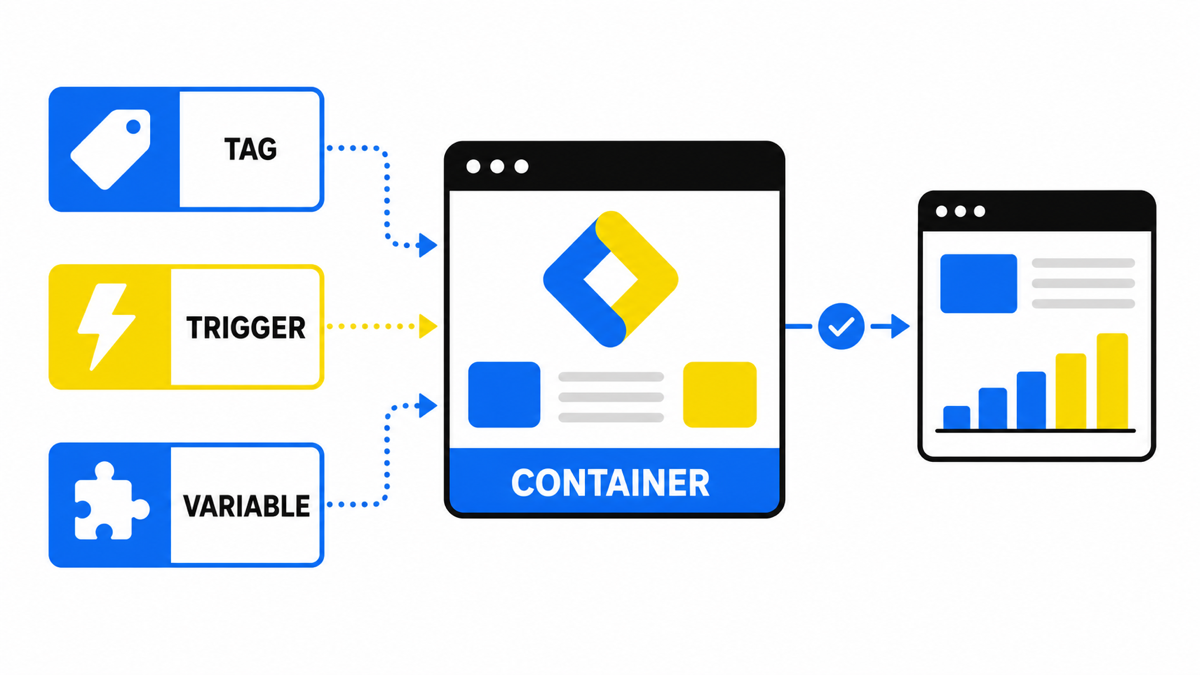
GTM holds the measurement configuration delivered to the site.
Tags, triggers and variables define what fires and when.
Preview tests the setup. Submit, then Publish, makes the version live.
Why Google Tag Manager exists for website owners
Google Tag Manager exists so website owners can set up and manage tags without changing the site code for each new tag. The introduction to Tag Manager says you add two snippets to each page, and after that you manage tags on the Tag Manager website.
For a long time tracking code was almost always pasted by hand into HTML or a CMS template. Every new button, pixel or event change meant a developer ticket or a risky live edit. Over 19 years in advertising, I have seen that pattern come back after a theme update.
Typical cases that used to trigger another billable change request:
- You added a new page with a button whose clicks must be counted.
- You already run Google Ads and now need Meta Pixel or another ad tag for remarketing.
- You want a behaviour tool (heatmaps, chat, call tracking) without rewriting the theme.
Without a container, each integration costs developer time or $ from your ops budget. Editing code yourself often creates script conflicts: slower pages, broken forms, double-fired events.
GTM is built for that operational pain. Install the container once. After that, most analytics and ads tags are added, paused and versioned in a web UI with a preview mode. A container is the set of tags, triggers, variables, and related configuration for one website or app.
Core components of Google Tag Manager
The core components of Google Tag Manager are the tag, the trigger, the variable, and the data layer. The components page uses those four parts to decide what is sent and when.
A tag is code that sends data to a system such as Google Analytics. The same page names the Google Analytics tag and the Google Ads conversion tag. You control those tags from the web interface instead of pasting each one into the theme.
A trigger listens for an event such as a click, a form submission, or a page load. When the event matches the trigger, the tags that use that trigger fire.
A variable is a named placeholder for a value that changes, such as a product name, a price, or a date. The web variable list includes Page URL and Click Text. Some built-in variables are already on in a new container. Turn the rest on from Variables, then Configure, as the built-in variables topic describes.
The data layer temporarily holds values in the browser so tags, triggers, and variables can read them. On the data layer guide the page creates one JavaScript array, window.dataLayer = window.dataLayer || [], and you push an object into it. The same guide also calls the data layer an object. The array is what the page creates. Values do not carry to the next page on their own.
Through GTM you can collect signals about what people do on the site:
- time on site and pages viewed;
- micro-conversions: clicks on buttons, phone links, chat widgets;
- how far people scroll when that depth actually matters;
- whether a lead form was submitted;
- cart adds and checkout steps for ecommerce flows.
That detail helps improve both the site and the ads. You see which actions follow the click, where people stall, and whether the fix belongs in copy, form design, page speed or the offer itself.
| Component | Role in GTM | Practical business example |
|---|---|---|
| Tag | Code that sends data to a system such as Google Analytics | Google Analytics tag or Google Ads conversion tag |
| Trigger | Listens for a click, a form submission, or a page load, then fires the tag | Thank-you page view or click on a phone link |
| Variable | Named placeholder for a value that changes | Page URL or Click Text |
| Data layer | JavaScript array that holds values for tags, triggers, and variables | An event object pushed from the page |
When a GTM event is actually working
For me a published tag is not yet a working measurement. I first check the event, parameters and trigger in Preview, then confirm arrival in GA4 DebugView, and only then treat the event as a signal for reporting or optimization.
How Google Tag Manager works step by step
Google Tag Manager works in a fixed order. You create the account and one web container, install two snippets, add the tag and the trigger, test in Preview, then Submit and Publish.
Create the account at tagmanager.google.com. The account and container steps put the account at the top level for the company and use one Web container per website, named with the top-most URL. Install from how to install GTM and the install page. The container ID starts with GTM, and the snippet sets async to true. On WordPress, Shopify, or Wix that page allows an integration, and the container must still load on every page you care about. Add the Google tag from how to set up GTM and the Google tag instructions: tag type Google Tag, the Tag ID, and the initialization trigger for all pages. Before publish, Preview and debug shows the draft in Tag Assistant, including which tags fired and what data they processed. Visitors do not see that view.
- Create a Tag Manager account and container. Give access to more than one person so the business is not locked to one inbox.
- Paste the two container snippets: one as high in the head as possible, and one immediately after the opening body tag. On WordPress, Shopify, or Wix an integration can place them, but the container must load on every page you care about.
- Add a Google tag. Choose tag type Google Tag, enter the Tag ID, and use the initialization trigger that runs on all pages.
- Add events: click, form submit, thank-you page view, scroll only if it is truly useful.
- Add a trigger: the condition that fires the tag (button, URL, CSS selector, dataLayer event).
- Add the tag: what to send (Google Analytics tag, Google Ads conversion, remarketing, or custom HTML).
- Test in Preview before publish. If clean, click Submit, choose Publish and Create Version, enter a version name and description, then click Publish. GTM keeps versions so you can roll back a bad release.
Cleaner events make ad spend in $ easier to manage: you see which ads create enquiries and which only create curiosity. GTM does not make the site convert by itself. It removes the operational barrier between “we should track that” and “the event is already in the report”.
Google Tag Manager versus Google Analytics 4
Google Tag Manager and Google Analytics 4 do different jobs: Tag Manager fires tags, and a tag can send measurement to Google Analytics. Tag Manager does not replace Google Analytics 4.
Google Tag Manager does not replace GA4 and does not invent conversions: it only delivers the tags you configure.
The introduction to Tag Manager says to migrate your tags in one pass. The same page says that pass is not mandatory, and that Tag Manager will fire the container tags alongside any tag you still administer outside Tag Manager.
Important GA4 detail: if you want analytics managed through GTM, serve GA4 through the container rather than stacking a direct site tag and a GTM tag without a plan. Double installs create duplicate events. If Analytics is already hard-coded, remove the direct tag, publish GA4 inside GTM, then verify with Preview and DebugView.
How GTM improves Google Ads campaigns
Google Tag Manager improves Google Ads campaigns when it sends the actions that mean an inquiry, such as a call or a form submit, instead of every page view.
Once the event map is clear, the useful next step is not “track every click”, but choose the few actions that mean a business result and only send those into Google Ads. A tidy container still needs a clear answer to what counts as a conversion, otherwise it only counts the wrong clicks more carefully.
A remarketing tag helps you show ads again to people who already visited or viewed a specific service. In GTM you pass parameters so the system can tell pages and products apart.
When one of those actions should count as a conversion, use the guide on Google Tag Manager goals setup.
When this does not apply
Google Tag Manager does not apply when the builder blocks the container, when tags go live without Preview, when the same event fires twice, or when the site has no business action to measure.
First, Google Tag Manager does not apply when the builder blocks head and body access and has no real GTM module. You need technical access first or the container never loads.
Second, Google Tag Manager does not apply when tags are published without Preview. GTM makes mistakes faster as well as fixes.
Third, Google Tag Manager does not apply when events fire twice (direct tag plus GTM, two containers, duplicate triggers). Reports look healthier while decisions get worse.
Fourth, Google Tag Manager does not apply when there is no business event worth measuring. Then the problem is not GTM. The site has no controlled path to an enquiry or sale.
Google Tag Manager is the container layer for those conversions. The step-by-step version is in my book on Google Ads for business owners.
My e-book “19 Google Ads Secrets”: how to get the most out of Google Ads without draining your budget, drawn from real campaigns and tests.
See the book →Once the basics are clear, move on to practice: Google Tag Manager training in 5 practical lessons, from installing the container to GA4 events.
Questions and answers
Do I install one Google Tag Manager snippet or two?
You install two snippets on each page, one as high in the head as possible and one immediately after the opening body tag. The official snippet also creates the container script with async set to true.
Can Google Tag Manager replace Google Analytics 4?
No, Google Tag Manager does not replace Google Analytics 4, because it only delivers the tags you configure. It does not invent conversions.
Do I need coding skills to use GTM?
Basic scenarios do not require a developer, and complex data layer work for ecommerce still deserves a one-time build. Day to day changes after that build stay in the container.
Which button publishes a Google Tag Manager container?
Click Submit, choose Publish and Create Version, enter a version name and description, then click Publish. Until that Publish click, the workspace change is not live, and an older version can be published again if you need to roll back.