
Google Tag Manager, or GTM, is the service that saves money and nerves for anyone who owns a site and needs to track meaningful user actions. It works with WordPress, Webflow, Shopify themes that allow container code, custom HTML sites and many builders used by service businesses in the US, Canada and the UK.

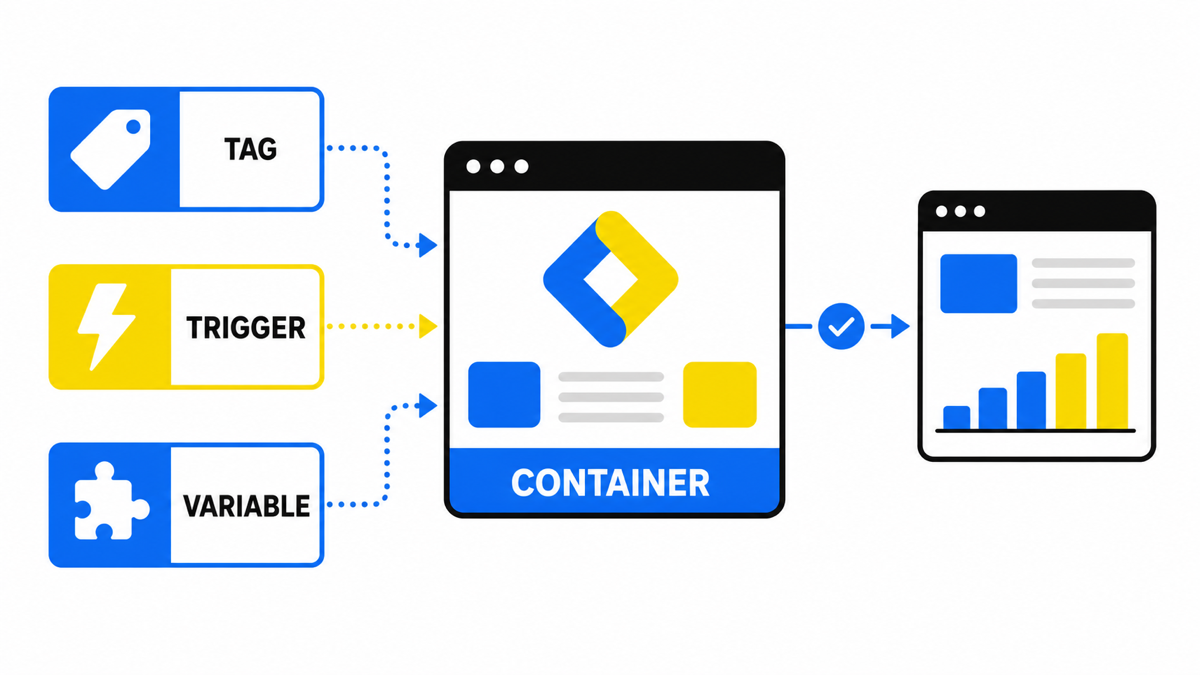
GTM holds the measurement configuration delivered to the site.
Tags, triggers and variables define what fires and when.
Preview tests the setup, Publish makes the version live.
Why Google Tag Manager exists
For a long time tracking code was almost always pasted by hand into HTML or a CMS template. Every new button, pixel or event change meant a developer ticket or a risky live edit.
Typical cases that used to trigger another billable change request:
- You added a new page with a button whose clicks must be counted.
- You already run Google Ads and now need Meta Pixel or another ad tag for remarketing.
- You want a behaviour tool (heatmaps, chat, call tracking) without rewriting the theme.
Without a container, each integration costs developer time or $ from your ops budget. Editing code yourself often creates script conflicts: slower pages, broken forms, double-fired events.
GTM is built for that operational pain. Install the container once. After that, most analytics and ads tags are added, paused and versioned in a web UI with a preview mode. Overview from Google: Tag Manager help.
What Google Tag Manager is
Google Tag Manager is a container embedded once in the site code. Inside that container live tags, triggers and variables. You can install it from the official snippet yourself or hand the one-time job to a developer.
When a GTM event is actually working
For me a published tag is not yet a working measurement. I first check the event, parameters and trigger in Preview, then confirm arrival in GA4 DebugView, and only then treat the event as a signal for reporting or optimisation.
The technical foundation for events and variables is Google’s documentation on the dataLayer.
Through GTM you can collect signals about what people do on the site:
- time on site and pages viewed;
- micro-conversions: clicks on buttons, phone links, chat widgets;
- how far people scroll when that depth actually matters;
- whether a lead form was submitted;
- cart adds and checkout steps for ecommerce flows.
That detail helps improve both the site and the ads. You see which actions follow the click, where people stall, and whether the fix belongs in copy, form design, page speed or the offer itself.
Once the event map is clear, the useful next step is not “track every click”, but choose the few actions that mean a business result and only send those into Google Ads.
Tags and reports matter when they show payback. My e-book “19 Google Ads Secrets” shows how to get the most out of Google Ads without draining your budget, drawn from real campaigns and tests.
See the book →A remarketing tag helps you show ads again to people who already visited or viewed a specific service. In GTM you pass parameters so the system can tell pages and products apart.
Important GA4 detail: if you want analytics managed through GTM, serve GA4 through the container rather than stacking a direct site tag and a GTM tag without a plan. Double installs create duplicate events. If Analytics is already hard-coded, remove the direct tag, publish GA4 inside GTM, then verify with Preview and DebugView.
How Google Tag Manager works
GTM is the shortest path to add tracking without living in the theme files. Basic scenarios do not require a developer. Complex dataLayer work for ecommerce or CRM handoffs still deserves a one-time build, after which day-to-day changes stay in GTM.
The usual setup path:
- Create a Tag Manager account and container. Give access to more than one person so the business is not locked to one inbox.
- Paste the two container snippets: one in head, one right after the opening body tag. On WordPress a trusted plugin can inject them, but the requirement is the same: the container must load on every page you care about.
- For GA4 via GTM you need the measurement ID (G-.). Take it from Analytics Admin and put it into the configuration tag or variable.
- Add events: click, form submit, thank-you page view, scroll only if it is truly useful.
- Add a trigger: the condition that fires the tag (button, URL, CSS selector, dataLayer event).
- Add the tag: what to send (GA4 Event, Google Ads conversion, remarketing, custom HTML).
- Test in Preview before publish. If clean, Submit / Publish. GTM keeps versions so you can roll back a bad release.
Cleaner events make ad spend in $ easier to manage: you see which ads create enquiries and which only create curiosity. GTM does not make the site convert by itself. It removes the operational barrier between “we should track that” and “the event is already in the report”.
Takeaways on Google Tag Manager
Install GTM if you regularly add or change tracking and do not want to touch site code every time. For a Google Ads advertiser it is the control layer for conversions, remarketing and neighbouring pixels, with preview instead of “ship to production and hope”.
Ready means: container on the site, key events pass Preview and DebugView, and Google Ads receives the actions that actually mean a business result. Next to that you still need a clear answer to what counts as a conversion, otherwise a tidy GTM setup only counts the wrong clicks more elegantly.
Once the basics are clear, move on to practice: Google Tag Manager training in 5 practical lessons, from installing the container to GA4 events.