
Below: what each product is for, what data exchange gives an advertiser, and how to link Google Ads and Google Analytics in today’s GA4 interface. The steps are for owners and operators who need a practical path, not a glossary of product names.

Both products need the required account permissions.
The product link enables data exchange but does not install tracking.
Choose conversions or audiences only after the link is active.
What Google Analytics is and why you need it
Google Analytics (today that means GA4) is for site analytics. In reports you typically see:
- how many users arrived;
- where they came from;
- visitor context: device, geo, and demographics where enabled;
- on-site actions:
- which pages they viewed;
- how they moved through the journey and how long they stayed;
- which events and links they used;
- how many leads or purchases completed (if events are set);
- what value those actions carried (if you send value).
It is the system for detailed behaviour analysis on the site. Analytics itself is free. It shows whether the site turns visits into enquiries or sales, where people drop, and who lands where.
That information helps you fix the site for selling a service or product. Short sessions: check ad-to-page relevance. Slow pages: compress media and cut scripts. Decent traffic but few forms: the issue is often trust, form friction or offer clarity, not only the bid in Ads.
What Google Ads is and what it is used for
Google Ads is for creating and serving ads. Ads can appear in Search, on Google’s partner surfaces, on YouTube and in other formats, and send people to your site or a call. You choose audiences by query, interests, remarketing and other signals the product allows.
You do not pay a seat fee for the console. You pay for clicks, impressions or conversions depending on campaign type and bidding. Costs in this guide are tracked in $.
In Google Ads you analyse:
- how ads, keywords and campaigns perform;
- which networks and placements drive clicks;
- which audiences to keep or exclude;
- impressions, clicks, CTR and cost per click;
- conversions, when they are defined in Ads or imported.
The path from ad to purchase splits cleanly into two parts:
- Before the click, Google Ads is in charge.
- After the click, Google Analytics records what happens on the site.
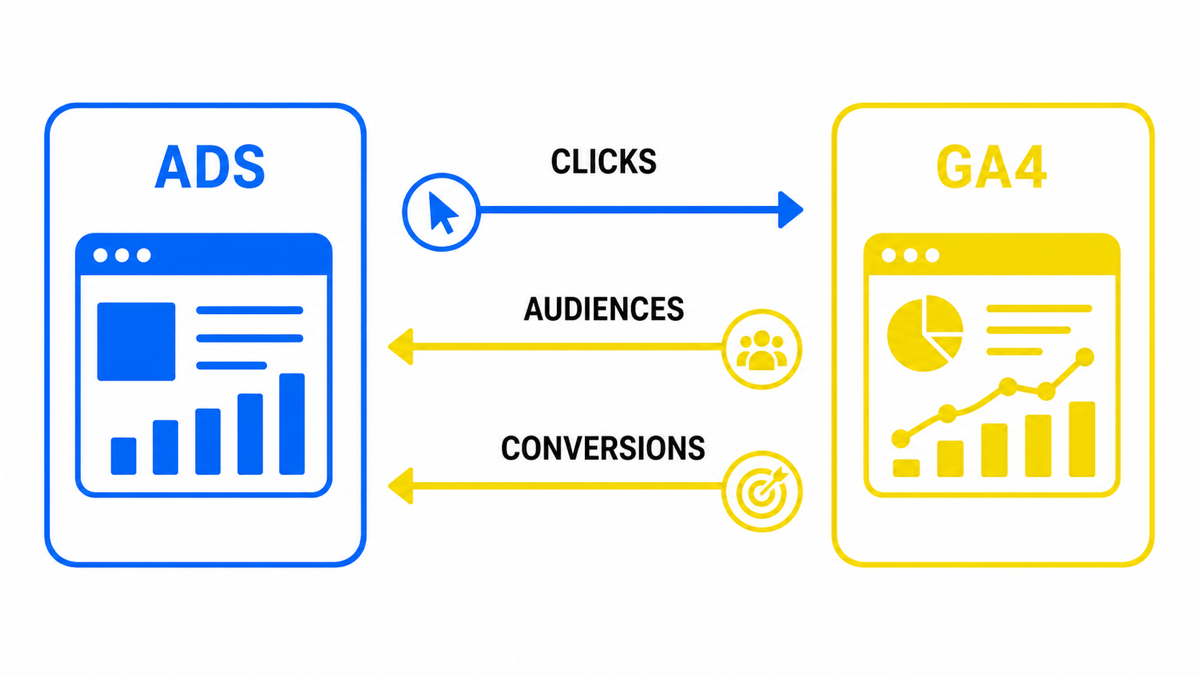
Without a link you hold two separate pictures. With a link you can line up ad spend against post-click behaviour and pass selected data both ways inside the options you enable.
How to link Google Analytics and Google Ads
Two reliable paths. Google’s official GA4 guide: Link Google Ads and Analytics.
Method 1: link from the Google Analytics interface
- In GA4 open Admin. You need Administrator access on the Analytics property.
- Under product links find Google Ads links.
- Click Link.
- Select the Google Ads account and tick it.
- Confirm the options offered (personalised advertising, audience export where relevant) and click Submit.
After linking, Analytics can show Google Ads dimensions, and Ads can import GA4 audiences and selected conversions if you turn those options on.
Method 2: link from the Google Ads interface
- In Google Ads open Tools → Linked accounts (some layouts place this under Admin).
- Choose Google Analytics (GA4) and Firebase.
- Click Details.
- Select the GA4 property. It is easier when that property is already available under the same Google login as Ads.
- Click Link and confirm.
- Enable import site metrics if you want Analytics site metrics inside Ads reports.
Importing site metrics adds another layer next to clicks and spend. It does not replace Ads conversion actions, but it helps you compare campaigns on more than raw traffic volume.
Once both paths are clear, the most common owner trap remains: Ads on one Google account, Analytics on another. Fix access first. Only then does conversion import become a useful next step.
Tags and reports matter when they show payback. My e-book “19 Google Ads Secrets” shows how to get the most out of Google Ads without draining your budget, drawn from real campaigns and tests.
See the book →Special case: accounts registered under different Google logins
If GA4 and Google Ads live on different Google accounts, grant access before you try to link.
In GA4 Admin, add the Ads user’s email with a high enough role (Administrator, or an Editor role that can manage product links). Accept the invite on that inbox.
You can also manage users under Analytics account access settings and add the required Google account email there.
Access levels decide what the person may change. To create the product link you need Administrator or Editor on the Analytics property and administrative access on the Google Ads account. Viewer-only (Analytics) or Read only (Ads) is not enough: the link option will not appear or will fail at submit.
Mirror the step in Google Ads: Admin → Access and security, add the Analytics account email and grant Admin access to the person who will create the link. Then return to Method 1 or 2 and finish the link.
When status shows Linked, data exchange starts within the options you enabled.
Takeaways on linking Google Ads and Google Analytics
Not every starter account needs the link on day one. If you are still testing keywords and watching CTR and cost per click in $, Ads reports may be enough. Site behaviour analysis already works inside GA4 without an Ads link. The link becomes necessary when you need Ads click data next to site reports, behaviour-based remarketing audiences shared into Ads, or import of GA4 conversions into Ads.
After linking you can:
- import key events / conversions from Analytics into Google Ads;
- use on-site behaviour audiences for remarketing;
- read campaigns next to behavioural site metrics.
Advertising becomes easier to manage when Ads reports contain trustworthy conversions. That requires measurement on the site (directly or via GTM), events defined as real business outcomes, and either Ads conversion actions or a confirmed GA4 import.
Typical import path in Ads: Goals → Conversions → new conversion action → Import → Google Analytics 4 → select the events → import. Then verify that campaign columns show real enquiries or sales, not decorative clicks.
Linking does not make the account profitable by itself. It removes the blind spot between the click and the site. Bids, keywords and conversion definition still do the heavy work. For what to count as a conversion in Google Ads, see Google Ads conversions: what counts.