

Google Ads lets you add a business logo to responsive search ads as an ad asset, formerly known as an ad extension. The logo appears in color inside a small circle at the top left of the ad. This visual cue can help you:
- make your ad more noticeable among similar blocks of text;
- increase brand recognition;
- help people find your ad among competitors when quickly scanning Google results.
How to add a business logo in Google Ads
For a Search campaign, open Campaigns → Assets and select + Business logo. In Add to, choose Account or Campaign; if you choose Campaign, select the relevant campaign. Choose the file to upload, adjust the crop, and save.
A BETA label could previously appear next to the logo option. In 2026, focus on whether the asset is available in the specific account, whether the advertiser meets the requirements, and whether the image passes review. If the logo option is missing, it is not necessarily a campaign setup error. Google may withhold the asset from accounts that do not yet meet its eligibility conditions.
Upload the image in a square format, but remember that the logo will appear inside a circular crop in the ad.
Keep the logo’s original brand colors and design as displayed on your website. Use a clear, legible file rather than recoloring the mark to attract attention. Google’s business information requirements explain which changes can lead to rejection.
First check the logo’s impressions in Campaigns → Assets, under Associations, by selecting Business logo. Once it is serving, compare CTR and conversions over comparable periods. A before-and-after change alone does not establish that the logo caused it; traffic, bids, and other ad changes can also affect results.
If you want to strengthen your search ads systematically, use the complete guide to Google Ads assets and setup as your next step.
My e-book “19 Google Ads Secrets”: how to get the most out of Google Ads without draining your budget, drawn from real campaigns and tests.
See the book →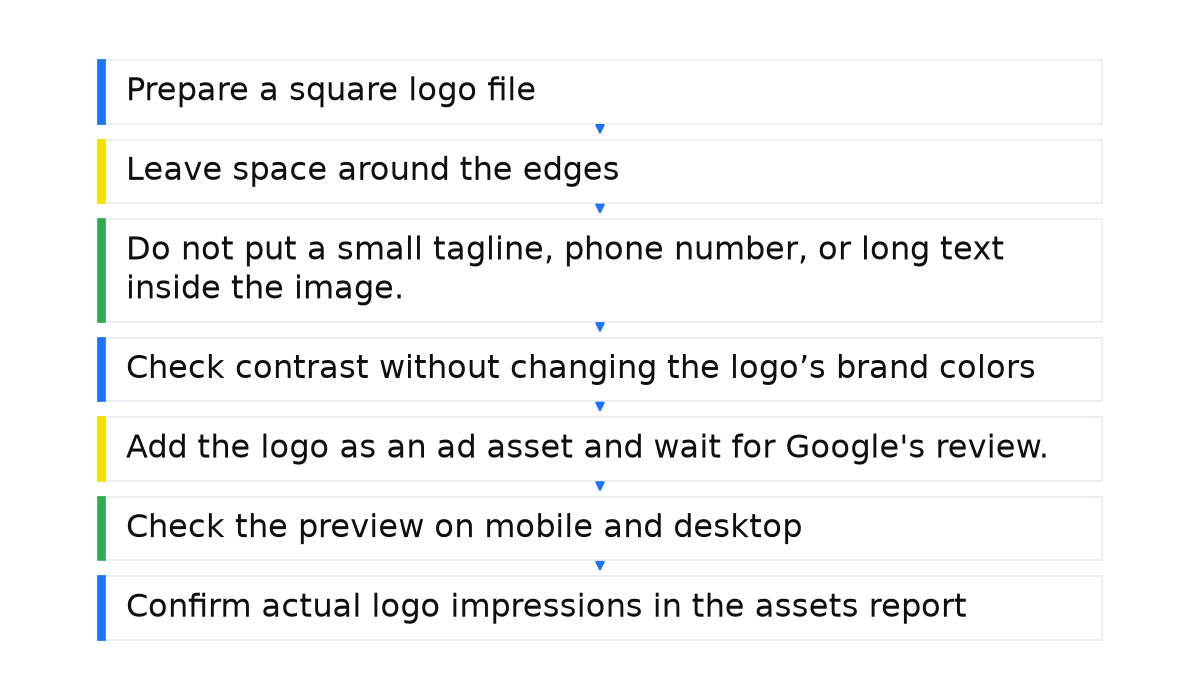
Checklist before adding a business logo
How I prepare a logo for display
Before uploading a logo, I check it at a small size and on a neutral background. A complex tagline, thin lines, and too much empty space can turn a recognizable design into an unreadable shape. I use a compact version already represented on the website, preserving the original design and colors. I then compare the mark and business name with the verified details so the design is consistent with advertiser verification.
Google explains the upload and verification rules in its guide to business information assets.
- Prepare a square logo file and check that the mark remains legible at a small size.
- Leave space around the edges because the circular crop may cut off parts of the logo.
- Do not put a small tagline, phone number, or long text inside the image.
- Check contrast without changing the logo’s brand colors or introducing a background inconsistent with the website version.
- Add the logo as an ad asset and wait for Google’s review.
- Check the preview on mobile and desktop, not only inside the ad editor.
- Confirm actual logo impressions in the assets report, then compare CTR and conversions over comparable periods. Treat changes as observations, not proof of the logo’s effect.
When this does not apply
- The logo may be unavailable when the account does not meet the requirements or the advertiser has not completed verification.
- Google does not guarantee that the logo will appear with every ad.
- Fine details, text, and poor cropping can become unreadable at a small size inside the circular mask.