

A potential customer should not have to search your website after clicking an ad. Google Ads sitelink assets, formerly known as ad extensions, send people directly to pricing, services, promotions, delivery details, reviews, or another useful page.
Sitelinks make the ad larger and give visitors several routes into the website. A person can click the main headline or a separate sitelink, making the desired information easier to reach.
What sitelink assets can improve
Each sitelink should match the ad’s keywords, headline, and description while providing more detail about the company’s offer, product, or service.
Sitelink assets can improve ad quality, click-through rate, or CTR, and overall advertising performance. Google does not charge a separate fee simply for adding the asset.
Google Ads and Google Analytics can show which sitelinks perform better with your audience and which ones lead to more conversions. Add tracking tags to the URLs to distinguish their results.
What sitelink assets look like
Sitelinks are clickable, appear in blue, and sit below the main part of the ad. They are more prominent than callout assets and structured snippets.
How I use sitelinks for their intended purpose
I treat sitelinks as short routes to distinct user tasks, not repetitions of the main headline. Each link leads to a useful page or a clearly marked section of a page and promises exactly what the visitor will find there. If the website structure does not provide those routes, I fix the navigation first. Sitelinks add space to an ad, but they cannot create a useful destination from an empty URL.
Google’s official documentation explains how sitelinks work and the levels at which you can add them.
The format varies according to the user’s device and the ad’s position in the search results:
- On desktop, an ad can show between two and six sitelinks. They may appear side by side or one below another, depending on the format.
- Some formats show only link titles; others can include descriptions. Descriptions are not guaranteed even when you fill in both lines.
- On mobile, up to eight links can appear in one row. The user can swipe left or right through them as a carousel. In the first position, each sitelink may occupy a separate line.
How to add sitelink assets in Google Ads
An advertiser can add sitelinks in several ways:
- In Campaigns, continue through ad setup until you reach Assets.
- In “Campaigns,” open “Assets,” click “+”, and select “Sitelink.” Choose “Account” in “Add to” for links relevant to all your campaigns, then fill in the fields and save.
- In Google Ads Editor, open Assets, choose Sitelinks, and select the level you want to edit. After changing the information in the panel on the right, click Post in the upper right corner.
Whichever route you use, specify where the sitelinks should apply: an individual ad group, a campaign, or the account. The account level is the most common choice. For an ad group, the system can draw links from all three levels at once and choose the most relevant ones to display.
You can also enable dynamic sitelinks. Google takes their content from the website and fills them automatically.
What information to add to sitelinks
Sitelinks let you add useful detail to the offer for your target audience:
- describe the types of services your business provides;
- highlight promotions, discounts, convenient delivery, and other benefits;
- feature popular products or list the brands you offer.
Every sitelink requires two fields:
- Link text. It can contain no more than 25 characters. Express the idea in one or two words when possible so that a potential customer can see more sitelinks.
- Page URL. The URLs must not repeat or send visitors to third-party websites. A link can point to an anchored section of the home page or a separate page covering prices, delivery options, a particular product, or a service. The page must match the link text.
Two descriptions of up to 35 characters each are optional but worth completing. Whether descriptions appear depends on the ad format and predicted performance. If you leave them blank and dynamic sitelinks are enabled, Google may generate descriptions automatically.
Google Ads reviews all text before it can appear to users in an ad above or below the search results.
If you want each click to lead to a relevant next step instead of merely reaching the website, review every link title, URL, and description before launch.
A campaign built by the manual still does not guarantee leads. My e-book “19 Google Ads Secrets” shows how to get the most out of Google Ads without draining your budget, drawn from real campaigns and tests.
See the book →Examples of sitelink assets
Here are examples of sitelinks I have used in search advertising:
- registration gift;
- who the workshop is for;
- key points checklist.
If a company offers several similar services, its sitelinks should clarify the specific service being advertised instead of redirecting attention to a different offer.
For service businesses, sitelinks work together with campaign structure and landing pages. The guide to Google advertising for service businesses explains this system as a whole.
For a company that provides turnkey renovations, these would be poor examples:
- economy renovation;
- premium renovation.
A better option is to list the work included in the turnkey service:
- design project;
- removal of existing structures;
- new floor plan;
- cleanup.
Prelaunch sitelink checklist
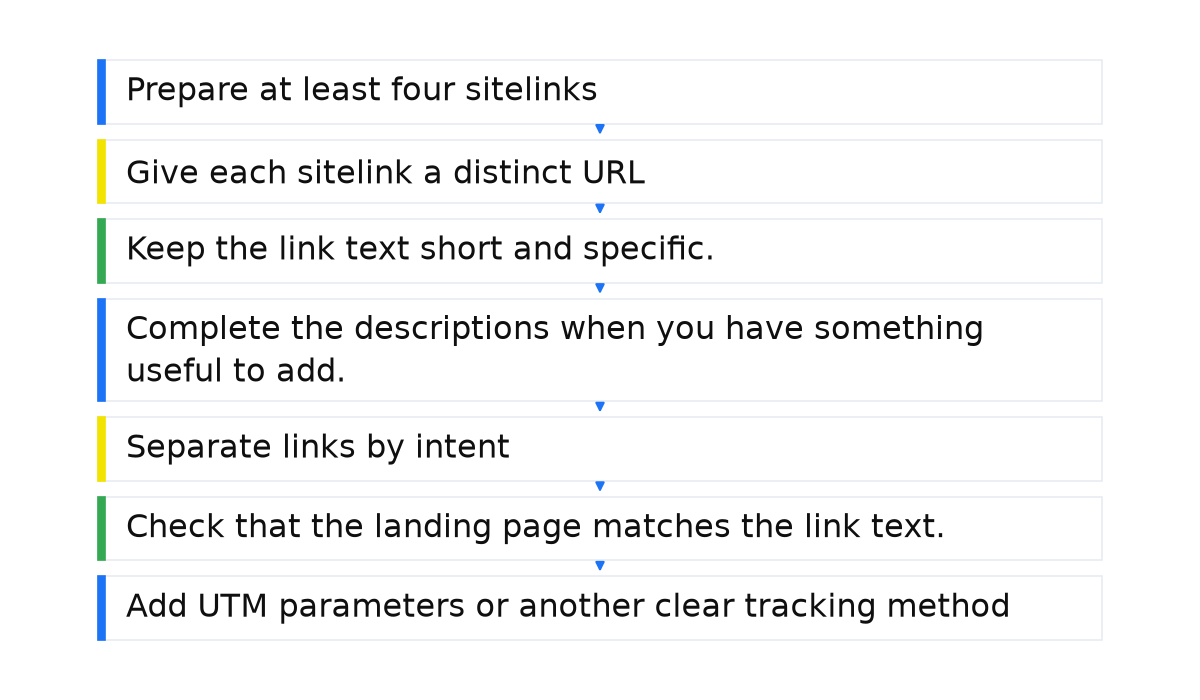
- Prepare at least four sitelinks so Google can choose relevant options for different searches and devices.
- Give each sitelink a distinct URL leading to a relevant page or an anchored section. Do not send every click to the same undifferentiated destination.
- Keep the link text short and specific. A user should understand the destination before clicking.
- Complete the descriptions when you have something useful to add. When shown, they give the user more detail about the destination.
- Separate links by intent, such as price, service, case studies, delivery, consultation, catalog, or another next step.
- Check that the landing page matches the link text. Otherwise, more clicks will not produce more inquiries.
- Add UTM parameters or another clear tracking method so you can measure each link’s contribution to conversions.
Key conclusions about sitelinks
For search advertising, create between four and ten sitelinks. Choose information that can attract more relevant clicks and ultimately contribute to more sales.
Use data from your website and Google Ads to select the destinations:
- which pages people visit most often and where they buy;
- which searches are most popular;
- what people most often want in addition to the main service.
Unlike changing bids, adding sitelinks does not carry a separate fee. Their value depends on how closely each title matches the user’s intent and the page reached after the click.