

Install Google Analytics 4 with Google Tag Manager when the site should send visits to Analytics and you want to add a click or a form later without another code edit. Create the web stream, copy the ID, add one tag in the container, choose the Initialization: All Pages trigger, and publish. I have spent 19 years in ads, and I still do not treat a published tag as finished until Preview shows it fired.
A dentist who wants bookings, and a plumber who wants calls, need that same base. The page view does not show a tap on Call. Installing GA4 with Tag Manager is the path I use when that next event is coming. What to read after the data arrives is in how to use Google Analytics 4. The container has to be on the site first, which is covered in how to install Google Tag Manager.
How to install GA4 through Google Tag Manager
Install GA4 through Google Tag Manager by adding a Google tag to the container, entering the Tag ID, assigning the Initialization: All Pages trigger, and publishing after a test. Before that tag, the container code has to be on every page and a web data stream has to exist. Google’s container install page asks for two blocks of code on each page: one as high in the head as possible, and one right after the opening body tag. The container ID starts with GTM. You need access to the site code, or a builder such as WordPress, Shopify, or Wix that can place the blocks. Create one web container and name it with the site’s main address. You do not need a container for each page, which the account and container page states.
Open Tags, then New, name the tag, and choose the tag type Google Tag. Paste the Tag ID. For the trigger, select the built-in Initialization: All Pages trigger. It fires before your other tags. Do not use the Consent Initialization trigger. That one is only for the tag that sets consent. Save. The clicks are on the page for adding the Google tag, and the trigger order is on the page view triggers page.
If the screen offers Google Analytics instead of Google Tag, open Tag Configuration, then Google Analytics, then Google Analytics, and paste the Tag ID there. That page names the trigger Initialization for all initialization events. Use the screen you see, and keep one tag for the site. The Analytics setup page says to create a unique Google tag for each website. The tag sets cookies and sends the events Analytics collects on its own. You need the Editor role or above.
Copy the Tag ID before you paste it. In Admin, open Data collection and modification, then Data streams, then the stream. Click Configure tag settings, click the Google tag, and copy the ID under Tag details. If Admin says Property Settings, open Data streams there and copy the Measurement ID under Stream details. It starts with G-. The clicks are on the page that finds the Google tag ID and on the other find-ID page.
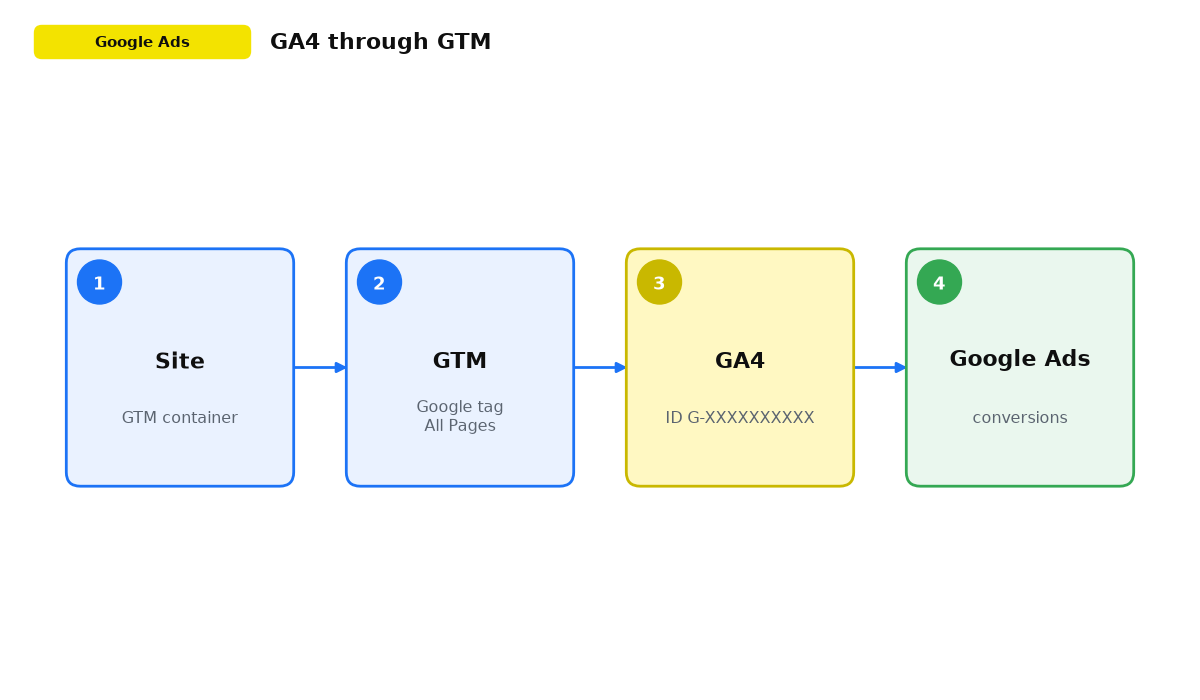
Read the picture as the path from the site, through the container, into Analytics, and then into Google Ads. Use the Initialization: All Pages trigger rather than a later page view trigger. Linking visits to campaigns is covered in how to link Google Ads and Analytics.
What the tag records before you add an event
The tag records a page view on every load, and that page view cannot be switched off. Further events arrive when enhanced measurement is on for the web stream. Open Admin, then Data collection and modification, then Data streams, open the stream, and turn the Enhanced measurement switch on. On the Google tag itself, automatic event detection is on for every event type unless someone turned one off. The list is on Google’s enhanced measurement page.
| Event | When it is recorded | Extra tag |
|---|---|---|
| page_view | Each page load. You cannot turn collection off. | No |
| scroll | The first time someone reaches 90 percent of the page. | No |
| click | A link that leaves your domain. | No |
| view_search_results | A results URL that uses q, s, search, query, or keyword. | No |
| YouTube video events | An embedded YouTube video with the player API, at the start, at 10, 25, 50, and 75 percent, and at the end. | No |
| file_download | A click on a common file, such as a pdf or a zip. | No |
| form_start and form_submit | The first use of a form in the session, and the submit. | No |
| Phone click or purchase | Not in that list. | Yes, a Google Analytics: GA4 Event tag |
Form parameters show in reports only after you create custom dimensions for them. A dentist’s booker is often a frame from another service, and a plumber’s phone link is not in the list. Building that form event is covered in form tracking in Tag Manager. The event you send to Ads is covered in GA4 key events for Ads.
A custom event uses a Google Analytics: GA4 Event tag. Enter the Measurement ID, then an event name you will recognize in the reports. The Measurement ID belongs to the web stream. It starts with G- and then letters and numbers, and it is the same ID as the destination ID. Open the Web tab of Data streams and read the first row of the stream details. You need Editor access. The format is on the Measurement ID page, and the tag fields are on the event tag page.
How GA4 measures engagement and bounce rate
GA4 measures engagement as a session that lasts longer than 10 seconds, a session that has a key event, or a session with 2 or more page views. The engagement rate is the share of sessions that qualify. The bounce rate is the share that do not. A visit under 10 seconds, with no key event and no second page, is not engaged. The tests are on the engagement rate and bounce rate page.
The events first_visit, first_open, and session_start do not count toward an engaged session, even if you mark them as key events. An old timer was a workaround for Universal Analytics, which called a one page visit a bounce. You do not need that timer to change bounce rate in GA4. I still use one when I want time on a long service page. More on the metric is in bounce rate in GA4.
How to create a 15-second tag in Google Tag Manager
Create the 15-second tag in Google Tag Manager by setting up a Timer trigger with a 15,000 millisecond interval and Limit set to 1, then connecting it to a Google Analytics: GA4 Event tag. Open Triggers, then New, and choose Timer. The help’s example interval is 5,000 milliseconds. A 15 second wait is 15,000 in that field. An empty Limit keeps firing until the person leaves. Add an enable condition, or the listener stays off. Paste the Measurement ID, name the event so you can find it in the reports, attach the timer, and publish. The fields are on the timer trigger page.
How to verify the Google Analytics installation
Verify the Google Analytics installation in Preview before you publish, and in DebugView before you trust a number. Preview opens Tag Assistant and turns on debug mode.
How I approve a GA4 installation
I consider the installation complete only after testing it in Preview and DebugView. I perform the target action and confirm that the required key event was actually recorded. Publishing a tag by itself proves nothing.
- In the container workspace, click Preview, enter the site address, and click Connect.
- Open the page and confirm the Analytics tag fired.
- In Analytics, open Admin, then Data display, then DebugView.
- Do the action you care about. The seconds column shows events from the last 60 seconds.
- When the test is clean, click Submit, choose Publish and Create Version, name the version, and click Publish.
The Preview and Publish clicks are on the verify and publish page. DebugView is on the DebugView page. Events stay hidden if consent mode is on and the person has not agreed to Analytics cookies. Setting debug_mode to false does not turn debug mode off. Remove the field.
If an old GA4 Configuration tag is still listed, Google says it has already been upgraded to the Google tag, and the event tags stay as they are. If Tag Manager is already on the site, there is no need to paste a gtag.js snippet as well. A Universal Analytics ID starts with UA-. Standard Universal Analytics properties stopped processing hits on July 1, 2023. The upgrade note is on the Tag Manager and gtag.js page, and the shutdown date is on the Universal Analytics shutdown page.
A 10-minute installation checklist
The 10-minute installation checklist runs both container snippets, one Google tag with the stream ID, the Initialization: All Pages trigger, Preview, DebugView, and Publish.
- Create one web container and put both code blocks on every page.
- Copy the Tag ID from Tag details, or the Measurement ID from the first row of the web stream.
- Create one Google tag, paste the ID, and select the Initialization: All Pages trigger.
- Turn on enhanced measurement if you want scrolls, outbound clicks, and form events.
- Open Preview, connect the site, and confirm the tag fired.
- Check DebugView, then Submit and Publish.
- Add a separate event for the call, the booking, or the purchase.
- Leave any UA- property out of the live setup.
When this does not apply
Skip this install when you only need page views, clicks, and scrolls and you will not add another tag. The Tag Manager and gtag.js page says the Google tag on its own covers those defaults, and it recommends Tag Manager when you need more control. Also skip it when the two container blocks are not on the site, or when the only ID you have starts with UA-. Do not rely on this base setup alone when the action you care about is a phone call or a purchase. Those two actions are not in the enhanced measurement list, so add a Google Analytics: GA4 Event tag in Tag Manager for each one.
The checks above are how I sign off an Analytics install before anyone changes a bid. The step-by-step version is in my book on Google Ads for business owners.
My e-book “19 Google Ads Secrets”: how to get the most out of Google Ads without draining your budget, drawn from real campaigns and tests.
See the book →Questions and answers
Do I still create a GA4 Configuration tag?
No. Google upgraded the GA4 Configuration tag to the Google tag, and your event tags stay as they are.
Which trigger should the Analytics tag use?
Use the Initialization: All Pages trigger, so the tag fires before your other tags.
Will the base tag record a phone call or a purchase?
No. Phone clicks and purchases are not in the enhanced measurement list, so they need their own event.
Where do I copy the ID for the tag?
Open Admin, Data streams, and the web stream. Copy the Tag ID under Tag details, and the Measurement ID from the first row.