
Forms exist so a visitor can leave a contact path: order, consultation, callback. That is why form tracking in Google Tag Manager is a core analytics job for owners in the US, Canada and the UK: the event reaches GA4 and, with product links, imports into Google Ads as a conversion. Without it, Smart Bidding only sees clicks, and spend in $ optimises on the wrong signal.

Use the Form Submission trigger when a real submit event occurs.
Push a named event to dataLayer when the page does not reload.
Count the confirmed result, not the button click.
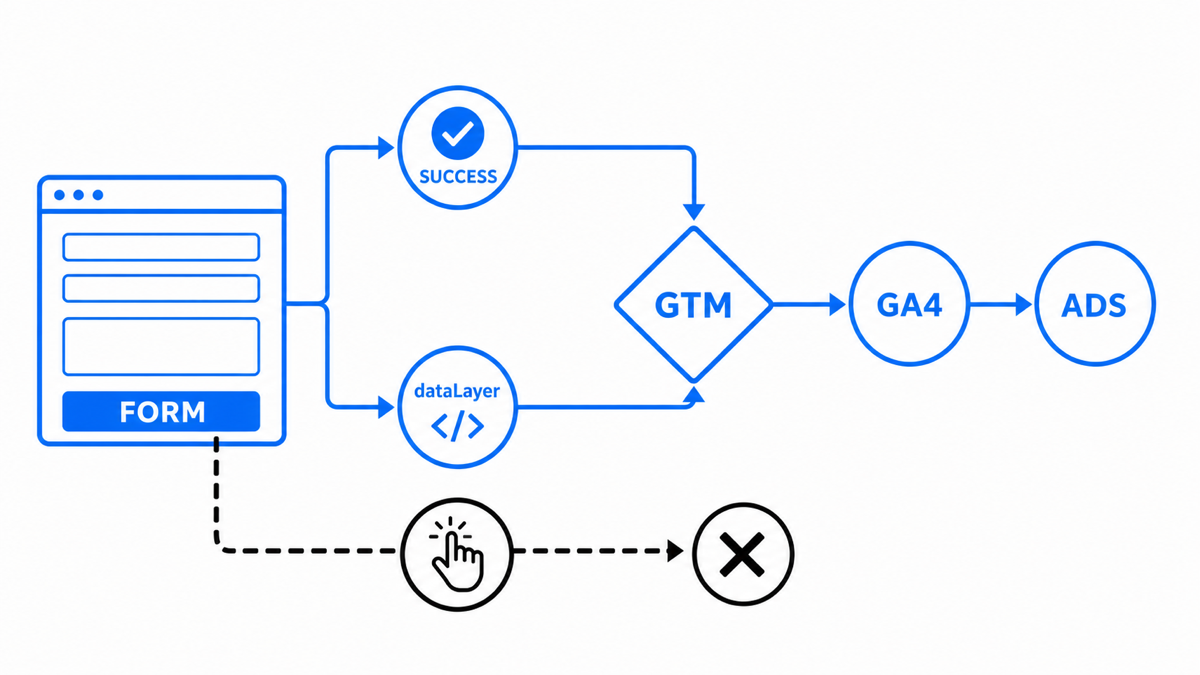
Track form submit in GTM with a Thank You page
There are several ways to track forms in GTM. The simplest is when a successful submit lands the user on a dedicated “Thank you” page. You are not listening to the form event itself; you are counting that page view.
How to set this up:
- You can skip GTM for this path. GA4 has no Universal Analytics-style “goals”: let GA4 record the thank-you
page_view, then in Admin → Events mark that view (or a dedicated event) as a conversion once. - Through GTM: create a Page View trigger where the page URL contains the thank-you path (for example
/thank-youor/thanks). Then a Google Analytics: GA4 Event tag linked to your existing GA4 / Google tag configuration, with a clear event name such asform_submit_thankyou. You do not recreate UA goals: the event arrives in GA4 and is marked as a conversion once.
How to track a form submit in Google Tag Manager
A classic form works like this: the user fills name, phone or other fields, clicks Submit, and the browser reloads or navigates away.
What I count as a real form submit
I do not treat a button click as a form submit. A reliable signal only appears after a confirmed server response or an explicit success state in the UI; validation errors and retries should stay separate. I agree with the developer in advance which technical event means “data accepted”, so GTM records the outcome rather than the user’s intention.
Container and tag principles are documented by Google in the Tag Manager developer overview.
Most setups create a trigger and a tag with the same clear name (for example “Form submit”), then mark the event once as a conversion in GA4. Three stages:
- Trigger. Name it, for example, “Form submit”. Type: Form Submission. Fire on Some Forms. Identify the form with a variable, because a site often has more than one form.
Available form variables include Element, ID, Classes, Target, URL and Text. Right-click the form → Inspect to see the markup. Pick something unique to that form (ID, class, page URL). URL works well when each page has a single form.
- Tag. Same name as the trigger. Type: Google Analytics: GA4 Event (wording may be “GA4 Event” depending on UI). Configuration tag: your existing GA4 / Google tag on All Pages with the Measurement ID. Event name, for example
form_submit; optional parameters such asform_idorform_locationto separate forms in reports. Universal Analytics category / action / label fields are not required for GA4: an event has a name and parameters. - Conversion mark in GA4. Older Analytics needed a separate Goal with manual mapping. In GA4,
form_submitarrives as soon as the GTM tag fires. Once: Admin → Events → Mark as conversion next to that event. It then appears as a conversion in GA4 and, with product links, as an optimisation signal in Google Ads.
The GA4 conversion toggle applies immediately. In GTM you still need Save → Submit → Publish or nothing changes for real visitors.
Once form_submit is stable in Preview and Real-time, the useful next step is not “track every button”, but send into Google Ads only the action that means a real enquiry for the business.
Tags and reports matter when they show payback. My e-book “19 Google Ads Secrets” shows how to get the most out of Google Ads without draining your budget, drawn from real campaigns and tests.
See the book →How to verify form submit tracking set up in Google Tag Manager
GTM has Preview mode. Turn it on, fill and submit the form on your site. If the setup is correct, Preview shows both the trigger and the form_submit tag. In parallel open GA4 Real-time and confirm the event arrived with the expected parameters. Preview also lets you inspect form variable values (ID, Class, and so on).
Non-standard cases
Ajax forms are harder: after submit the form hides, the URL stays the same, and a “Thanks, we will contact you” message may appear. The native Form Submission trigger often misses this because there is no classic page navigation. Then you need custom HTML or a dataLayer.push from site code with an agreed event name, usually done by a developer. A no-code alternative: an Element Visibility trigger on the thank-you message CSS selector that only appears after a successful submit.
A common error: empty or invalid submits still count as wins. The usual cause is listening to the button click instead of a confirmed submit or success state. Fix that before you trust the number of leads in the report.
Takeaways on form submit tracking
Form submit tracking is mandatory for managed paid search. Each important form needs its own trigger, tag and GA4 event name: a sales consultation and a newsletter signup have different value and must not share one event.
When a simple method works (thank-you page or native Form Submission), start there: fewer mistakes and less developer time. If the form is Ajax or a heavy JS framework, move to dataLayer / custom HTML or involve a developer.
Checklist: form tracking in 15 minutes
- Identify form type: classic (reload / navigate) or Ajax (no reload).
- For a classic form, create a Form Submission trigger and a variable (ID, Classes or URL) that uniquely identifies it.
- Create a Google Analytics: GA4 Event tag, link it to the GA4 configuration, name the event for example
form_submit. - For Ajax: Element Visibility on the thank-you message CSS selector, or a developer
dataLayer.pushwith the same event name. - Save the tag in GTM → Submit → Publish.
- In GA4: Admin → Events → Mark as conversion for
form_submit. - Verify with GTM Preview and GA4 Real-time.
- If accounts are linked, confirm the conversion appears in Google Ads and is usable for bid optimisation.