

Dynamic keyword insertion can make a Google Ads campaign more relevant without dozens of nearly identical ads. In a selected field, Google can automatically show a keyword from the ad group or use default text prepared by the advertiser.
How dynamic keyword insertion works
Google Ads uses keywords to decide when a search ad may appear. If a tire shop targets the keyword “tire service,” a related search may trigger its ad. A fixed headline can be enough in a simple group like this.
Other services attract many different ways of describing the same need. A tire service, for example, might receive searches about:
- tire fitting;
- tire replacement;
- tire service;
- wheel and tire service.
People notice an ad more readily when its wording matches their intent. Dynamic insertion can place the keyword that triggered the impression in a headline, description, or display path. It inserts a keyword from the ad group, not necessarily the person’s exact search term.
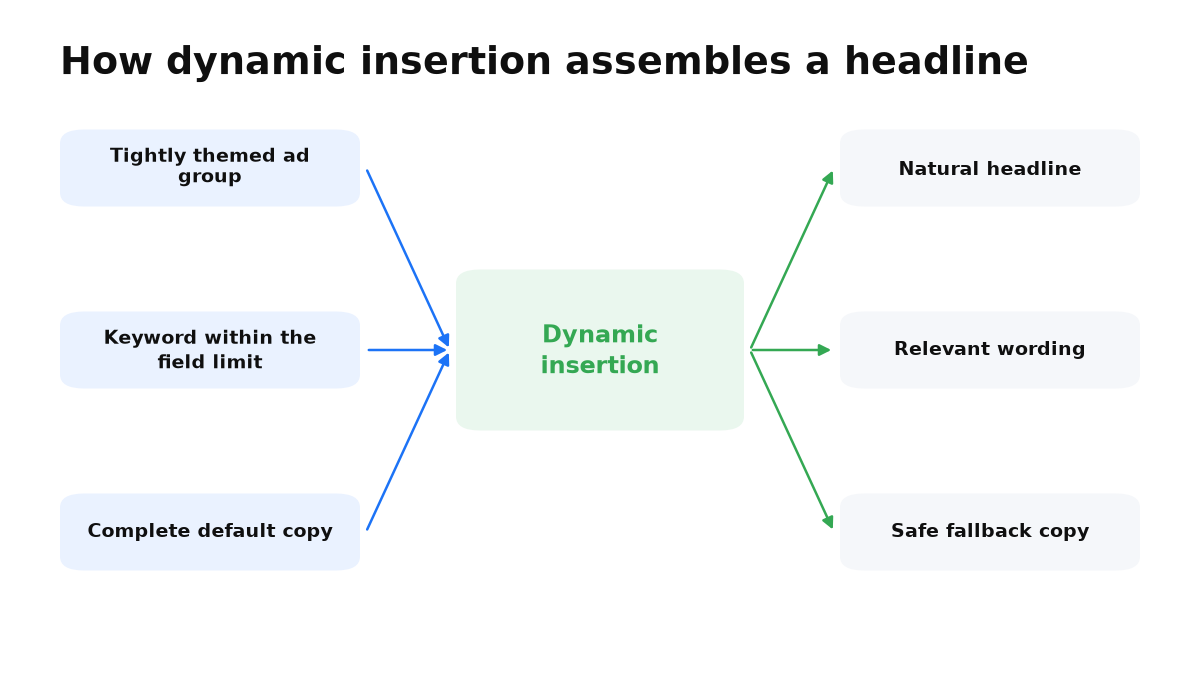
How to set up a dynamic headline in Google Ads
Enter an opening curly bracket, “{”, in the headline field and select dynamic keyword insertion from the menu. Google will fill that position with a keyword from the ad group when the text meets the field limits.
When I turn off dynamic keyword insertion
I use it only in a tightly themed group where every keyword fits the prepared sentence grammatically. If a group mixes different intentions, word forms, or trademark restrictions, I write separate headlines manually. I treat the default text as a complete message, not an emergency placeholder, because it may be exactly what the customer sees.
Google explains the syntax and restrictions in its dynamic keyword insertion guide.
Always complete the default text field. Google uses it when the selected keyword is too long for the available character limit. In the tire service example, the default could be “Tire Service.” You can also choose the capitalization applied to the inserted keyword.
More relevant wording can improve visibility, click-through rate, and ad quality. Do not judge the result by clicks alone. Review conversions, cost per lead, and the actual search terms that received impressions. The separate guide to Google Ads click costs provides rates across 18 niches and a budgeting formula.
To decide whether dynamic insertion belongs in your campaign, start by checking ad group structure, real search terms, and the default message customers may see.
My e-book “19 Google Ads Secrets”: how to get the most out of Google Ads without draining your budget, drawn from real campaigns and tests.
See the book →Where dynamic insertion can appear
Keyword insertion is not limited to the headline. It can also appear in other parts of the ad:
- Display path. The display path can contain wording related to the person’s search.
- Description. Fixed copy can be combined with a dynamic section placed before or after the permanent message.
For example, a description could contain “Book {KeyWord:Tire Service}.” The capitalization of the command controls the capitalization of the inserted keyword:
- keyword: all inserted letters are lowercase;
- Keyword: the first word begins with a capital letter;
- KeyWord: each word begins with a capital letter.
Dynamic insertion does not go in the final URL.
Other types of dynamic insertion
When editing a responsive search ad, entering “{” also offers two other options:
- Countdown. This shows how much time remains before a sale or limited offer ends. Set the event date and when the countdown should begin.
- Location insertion. An ad can insert a city, a state in the United States, or a country. For example, a property ad can combine “Property in” with the customer’s city.
Dynamic keyword insertion checklist
- Use insertion only in groups where the keywords have closely related meanings and lead to the same landing page.
- Read every keyword inside the complete ad sentence and make sure it sounds natural.
- Write short default text that fits the field limit and does not make a promise the business cannot keep.
- Review search terms before launch and add negatives for informational searches, requests for free options, and other irrelevant intent.
- Do not place insertion in every field at once. Begin with one headline or display path so the results are easier to interpret.
- After launch, monitor CTR, conversions, cost per lead, and the search terms that received impressions.
- If the wording becomes awkward or attracts cheap clicks without leads, turn insertion off and divide the ad group.
Conclusion
- Dynamic insertion can improve ad relevance without requiring many manually written variations.
- You can insert a keyword, countdown, or location in several ad fields, but not in the final URL.
- Because one ad remains in use, its performance history accumulates in one place. Constantly replacing ads by hand spreads the data across different ads.